Data Transformation
Overview
Data Transformation lets you normalize data before comparison using transformation expressions — useful when source and target data have formatting differences that aren't real data discrepancies (case differences, leading zeros, whitespace, date formats, etc.).
Transforms apply to any workflow type — Data Source Diff, Query Diff, or File Diff. They're named, reusable rules — each with its own name, description, and list of tables it applies to — managed from the Transforms tab.
Common scenarios include:
- Case differences: Source has
'EDA-24424', Target has'eda-24424' - Leading zeros: Source has
'131234', Target has'00000131234' - Whitespace: Extra spaces in source or target values
- Date formats: Different timestamp representations
The Transforms tab is only available on Data Source Diff workflows — Query and File workflows don't have a separate Filters or Transforms tab.
How to Add Transformation Rules
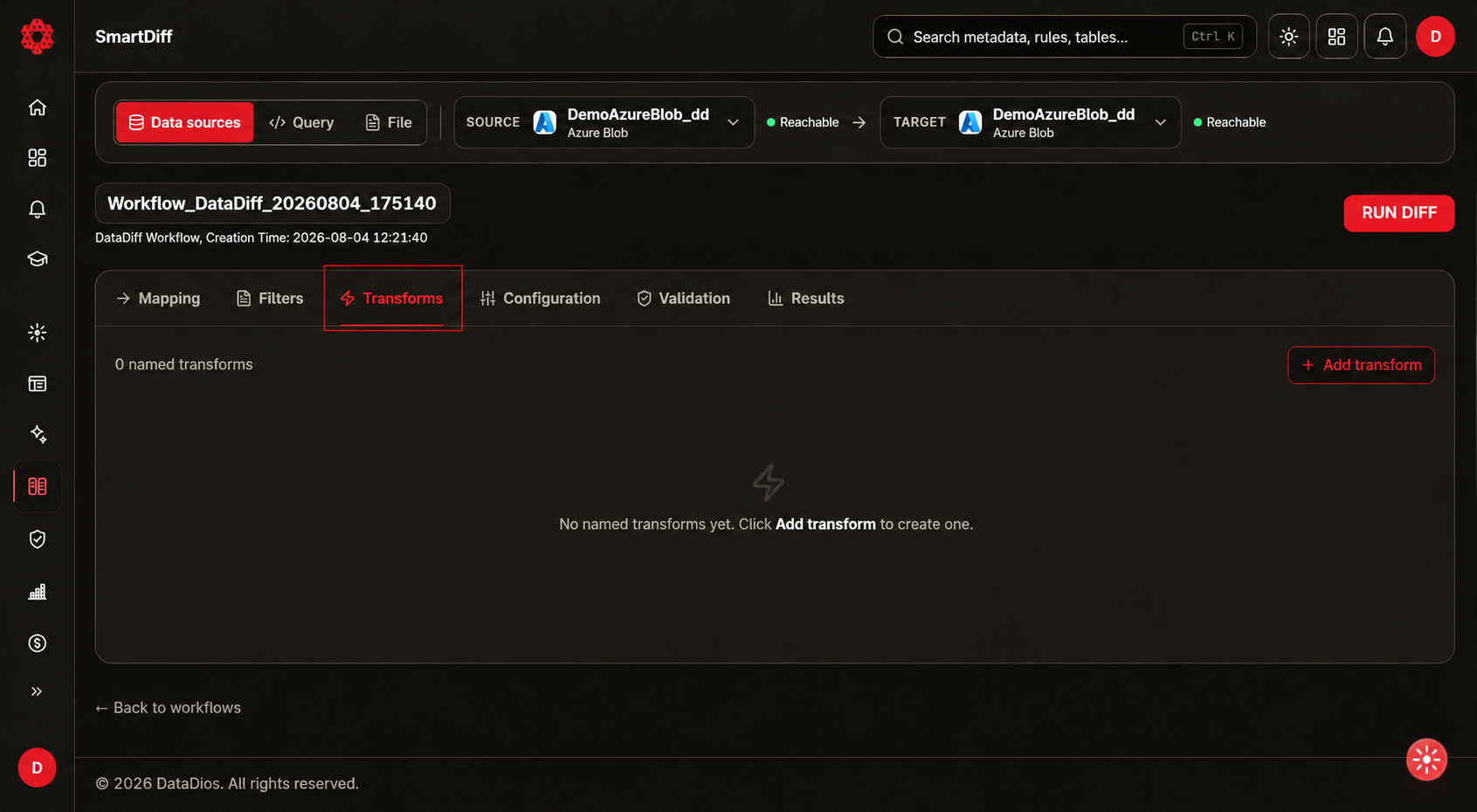
Step 1: Open the Transforms Tab
Open the Transforms tab in the editor. It lists every named transform in the workflow with its expression, applied tables, execution stage, and status.
Step 2: Add a Transform
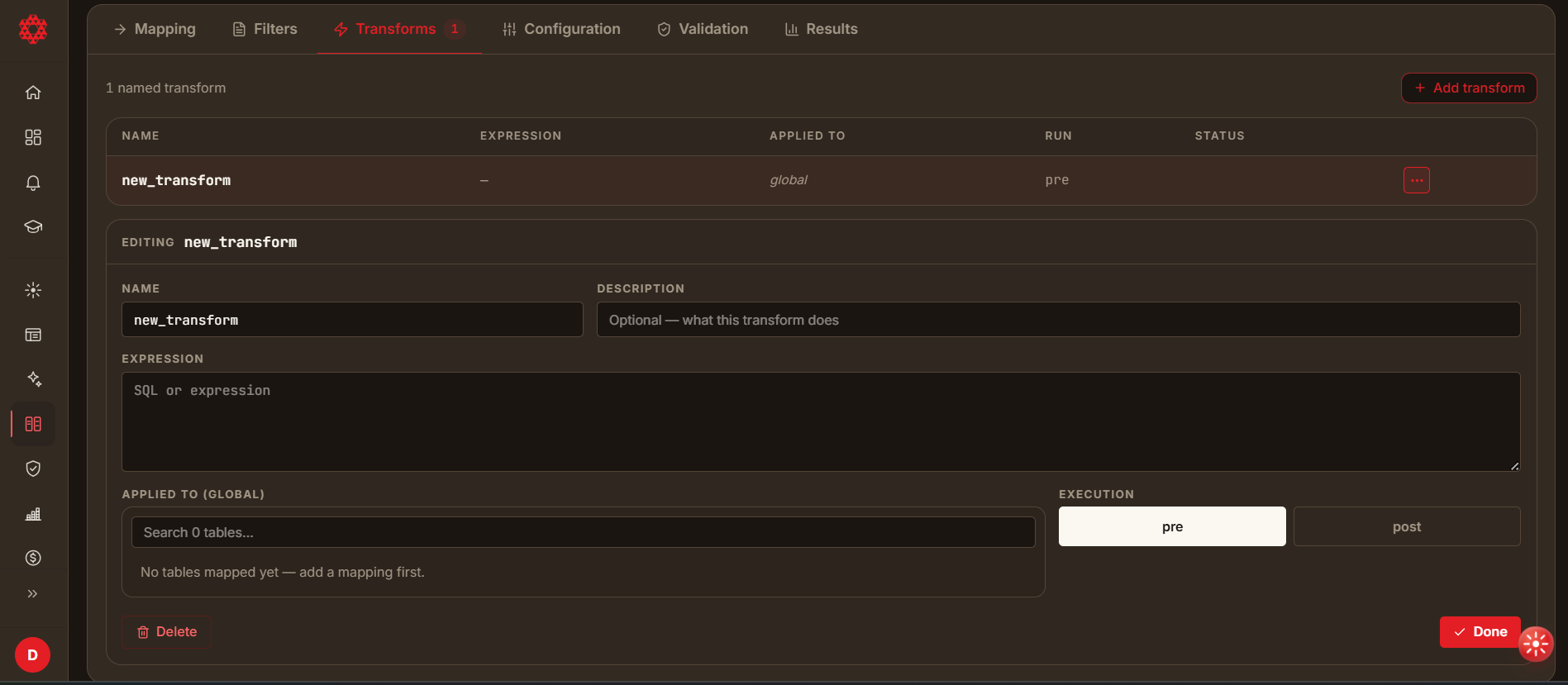
Click Add transform (or AI suggest to let SmartDiff propose one, e.g. lower_email / LOWER(email)). This opens an inline editor below the list with:
- Name and Description
- Expression — the transformation logic (see Expression Syntax)
- Applied to — a searchable, checkbox list of the workflow's mapped tables; leave empty to apply globally
- Execution — whether the transform runs pre or post diff
Click Done to save, or Delete to remove the rule.
Step 3: Add Additional Rules
Repeat as needed — each rule can target different tables or apply a different expression. The Transforms tab list scales with search, sort, and pagination once you have many rules.
Expression Syntax
Transformation expressions are written as SQL scalar functions applied to the column value — the same style used in the Filters tab's WHERE clauses. Write the function call the way you would inside a SELECT, referencing the column by name (e.g. LOWER(email)).
Basic Expression Format
UPPER(COLUMN_NAME)
TRIM(COLUMN_NAME)
LOWER(COLUMN_NAME)
Real-World Examples
Convert to uppercase and remove trailing hyphen:
RTRIM(UPPER(BSTNK), '-')
Remove leading zeros from customer number:
LTRIM(KUNNR, '0')
Common Transformations
Case Transformation
Convert to Lowercase
Converts values to lowercase to match target format.
Expression:
LOWER(COLUMN_NAME)
Example: 'EDA-24424' → 'eda-24424'
Convert to Uppercase
Converts values to uppercase to match source format.
Expression:
UPPER(COLUMN_NAME)
Example: 'eda-24424' → 'EDA-24424'
Leading Zeros
Remove Leading Zeros
Strips leading zeros from values.
Expression:
LTRIM(COLUMN_NAME, '0')
Example: '00000131234' → '131234'
Pad with Leading Zeros
Pads values with leading zeros to a specific length.
Expression:
LPAD(COLUMN_NAME, 11, '0')
Example: '131234' → '00000131234'
Whitespace Handling
Trim Whitespace
Removes leading and trailing whitespace.
Expression:
TRIM(COLUMN_NAME)
Example: ' hello ' → 'hello'
Special Characters
Remove Special Characters
Removes all special characters, keeping only alphanumeric and spaces.
Expression:
REGEXP_REPLACE(COLUMN_NAME, '[^a-zA-Z0-9 ]', '')
Example: 'EDA-24424!' → 'EDA24424'
Remove Double Quotes
Removes double quote characters.
Expression:
REPLACE(COLUMN_NAME, '"', '')
Example: '"value"' → 'value'
Substring Operations
Keep First N Characters
Keeps only the first N characters of the value.
Expression:
LEFT(COLUMN_NAME, 10)
Example: 'EDA-24424-EXTRA' → 'EDA-24424-'
Keep Last N Characters
Keeps only the last N characters of the value.
Expression:
RIGHT(COLUMN_NAME, 5)
Example: 'EDA-24424' → '24424'
Remove First N Characters
Removes the first N characters from the value.
Expression:
SUBSTRING(COLUMN_NAME, 5)
Example: 'EDA-24424' → '24424'
Date/Time Transformations
Truncate Time (Keep Date Only)
Removes time portion, keeping only the date (first 10 characters).
Expression:
LEFT(COLUMN_NAME, 10)
Example: '2024-01-15 10:30:00' → '2024-01-15'
Replace/Substitute
Replace Specific Value
Replaces a specific string with another value.
Expression:
REPLACE(COLUMN_NAME, 'NULL', '')
Remove All Digits
Removes all numeric digits from the value.
Expression:
REGEXP_REPLACE(COLUMN_NAME, '[0-9]+', '')
Example: 'EDA-24424' → 'EDA-'
Quick Reference Table
| Transformation | Function | Example Input | Example Output |
|---|---|---|---|
| Lowercase | LOWER(col) | 'EDA-24424' | 'eda-24424' |
| Uppercase | UPPER(col) | 'eda-24424' | 'EDA-24424' |
| Title Case | INITCAP(col) | 'hello world' | 'Hello World' |
| Trim whitespace | TRIM(col) | ' hello ' | 'hello' |
| Trim left | LTRIM(col) | ' hello' | 'hello' |
| Trim right | RTRIM(col) | 'hello ' | 'hello' |
| Remove leading zeros | LTRIM(col, '0') | '00000131234' | '131234' |
| Pad with zeros | LPAD(col, N, '0') | '131234' (N=11) | '00000131234' |
| First N chars | LEFT(col, N) | 'hello' (N=3) | 'hel' |
| Last N chars | RIGHT(col, N) | 'hello' (N=3) | 'llo' |
| Remove first N | SUBSTRING(col, N+1) | 'hello' (N=2) | 'llo' |
| Remove last N | LEFT(col, LENGTH(col)-N) | 'hello' (N=2) | 'hel' |
| Replace literal | REPLACE(col, 'a', 'b') | 'aaa' | 'bbb' |
| Replace regex | REGEXP_REPLACE(col, '[0-9]+', '') | 'abc123' | 'abc' |
Built-in Ignore Options
SmartDiff also provides built-in ignore options that can be enabled without custom expressions:
- Ignore Leading Zeros: Automatically strips leading zeros from both source and target before comparison
- Ignore Double Quotes: Removes double quote characters before comparison
These can be enabled via the workflow's Configuration/comparison settings without writing custom transformation expressions.
Best Practices
- Schedule comparisons during off-peak hours for large datasets when running many transforms
- Keep expressions column-scoped — write the function call against the column value directly (
LOWER(email)), not the whole row - Use AI suggest on the Transforms tab as a starting point, then edit the generated expression to fit your exact scenario
- Escape regex carefully —
REGEXP_REPLACEpatterns follow standard regex syntax; double-check character classes like[^a-zA-Z0-9 ]
Troubleshooting
- Transform expression errors: Check that the expression is valid SQL syntax and references the correct column name
- No transformation applied: Verify the column name matches exactly (case-sensitive), and that the transform's Applied to list includes the table you're checking
- Unexpected results: Use the Mapping tab's sample values to validate the expression before running the full diff
Configuration
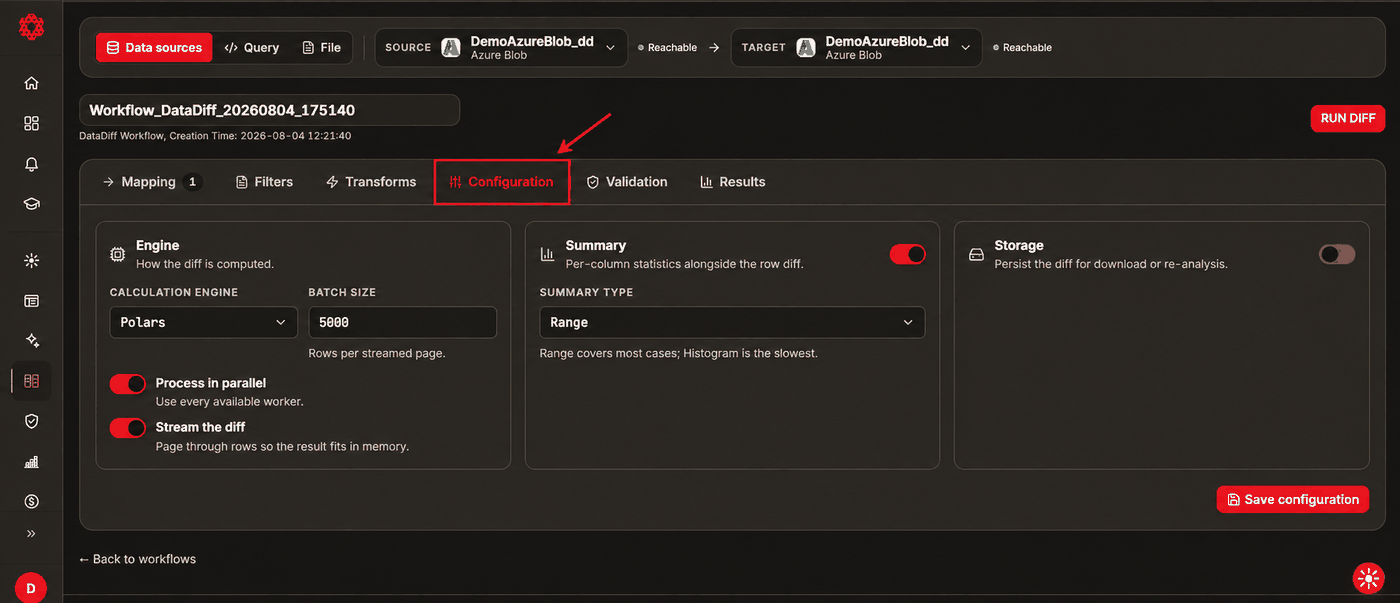
The Configuration tab has three cards — Engine, Summary, and Storage.
Step 1: Review Engine and Summary Settings
- Engine — pick the calculation engine (e.g. Polars), set the batch size (rows per streamed page), and toggle Process in parallel (use every available worker) and Stream the diff (page through rows so the result fits in memory)
- Summary — toggle summary diff on/off, and pick the summary type: Range (covers most cases) or Histogram (slowest)
- Storage — toggle on to persist the diff for download or re-analysis
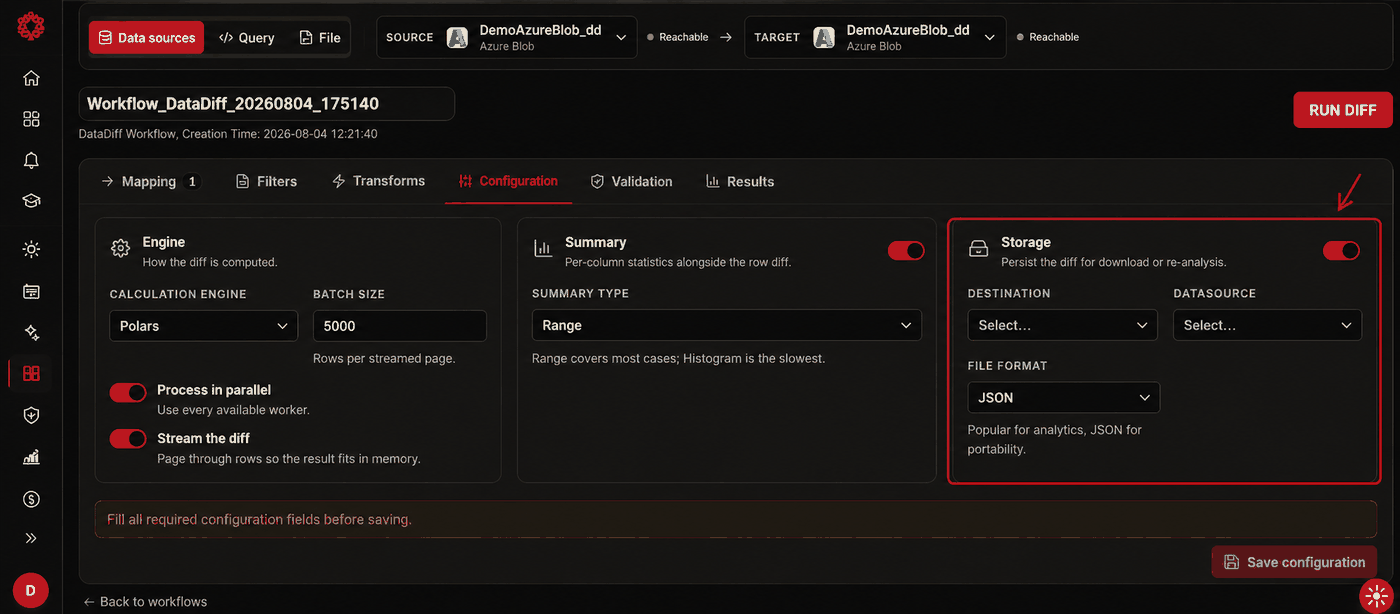
Step 2: Enable Storage (Optional)
Turning the Storage toggle on reveals three more required fields — Destination, Datasource, and File format (e.g. JSON) — and a banner reminding you to fill them in before you can save. Leave Storage off if you don't need the diff result persisted anywhere.
Step 3: Save
Click Save configuration once the required fields are filled in.