Generate DQ Rules (AI-Powered)
Overview
AI-assisted bulk is a rule-creation path inside Data Quality → Rules → Add rule that automatically creates data quality rules from source database objects and imports them into a Quality Hub. It analyzes the schema/metadata of selected tables and generates a starter set of validation rules, reducing manual effort.
Key Features
- AI-Powered Rule Generation - Automatically generates DQ rules based on schema metadata
- Multi-table, multi-rule in one shot - Select many tables at once and generate rules for all of them together
- DQ Hub Integration - Generated rules import straight into a target Quality Hub
Business Value
- Reduces manual effort in creating data quality rules
- Ensures consistency in data quality monitoring
- Accelerates data governance initiatives
- Provides a baseline rule set you can refine afterward
Prerequisites
1. Source Data Source Configuration
Before using this feature, ensure:
- The source data source (e.g. PostgreSQL) is configured and connected in Data Explorer
- User has appropriate permissions to access the source data source
- Database tables/objects are accessible and metadata is available
2. Target Quality Hub Configuration
- A target Quality Hub (
DQ HUBtype data source) exists — see Data Quality → Step 1: Create a Quality Hub - User has permissions to create/import rules into the hub
Ensure the source data source is tested and connected before attempting rule generation.
Use Cases
The scenarios below are conceptual and still apply regardless of the UI changes — only the mechanics of generating rules (Steps 1–4 below) have changed.
Use Case 1: Onboarding New Database to DQ Framework
Scenario: A new production database needs to be monitored for data quality.
Steps:
- Configure source data source connection
- Identify all critical tables in the database
- Generate DQ rules for these tables
- Review and adjust generated rules in the Quality Hub
Benefits:
- Quick onboarding of new databases
- Automated rule creation saves time
Use Case 2: Migration Quality Assurance
Scenario: Validating data quality during database migration.
Steps:
- Generate DQ rules from the source system
- Apply the same rules to the target system
- Compare rule execution results between systems
- Identify discrepancies and data integrity issues
Benefits:
- Ensures data integrity during migration
- Automated validation process
- Consistent quality checks across environments
Use Case 3: Compliance Monitoring
Scenario: Ensuring regulatory compliance through data quality checks.
Steps:
- Identify compliance-critical tables (e.g., customer data, financial records)
- Generate DQ rules for these tables
- Monitor violations via Incidents and configure alerts via each rule's Notifications sub-tab
Benefits:
- Proactive compliance monitoring
- Automated alerting for violations
Use Case 4: Data Profiling and Discovery
Scenario: Understanding data patterns and quality issues in existing databases.
Steps:
- Run DQ rule generation for all critical tables
- Review generated rules to understand data patterns
- Identify quality issues (nulls, duplicates, format violations)
- Implement remediation strategies
Benefits:
- Data discovery and profiling
- Pattern identification
- Quality issue detection
Step-by-Step Usage Guide
Step 1: Pick a data source
Navigation: Data Quality → Rules tab → Add rule → AI-assisted bulk → Continue
The "AI-assisted rule creation" wizard opens: "Pick a data source + the objects you want covered. We'll suggest the rules that usually catch real bugs and bulk-create them."
- Data Source field — a searchable dropdown of existing connections (e.g. a PostgreSQL database), grouped by type
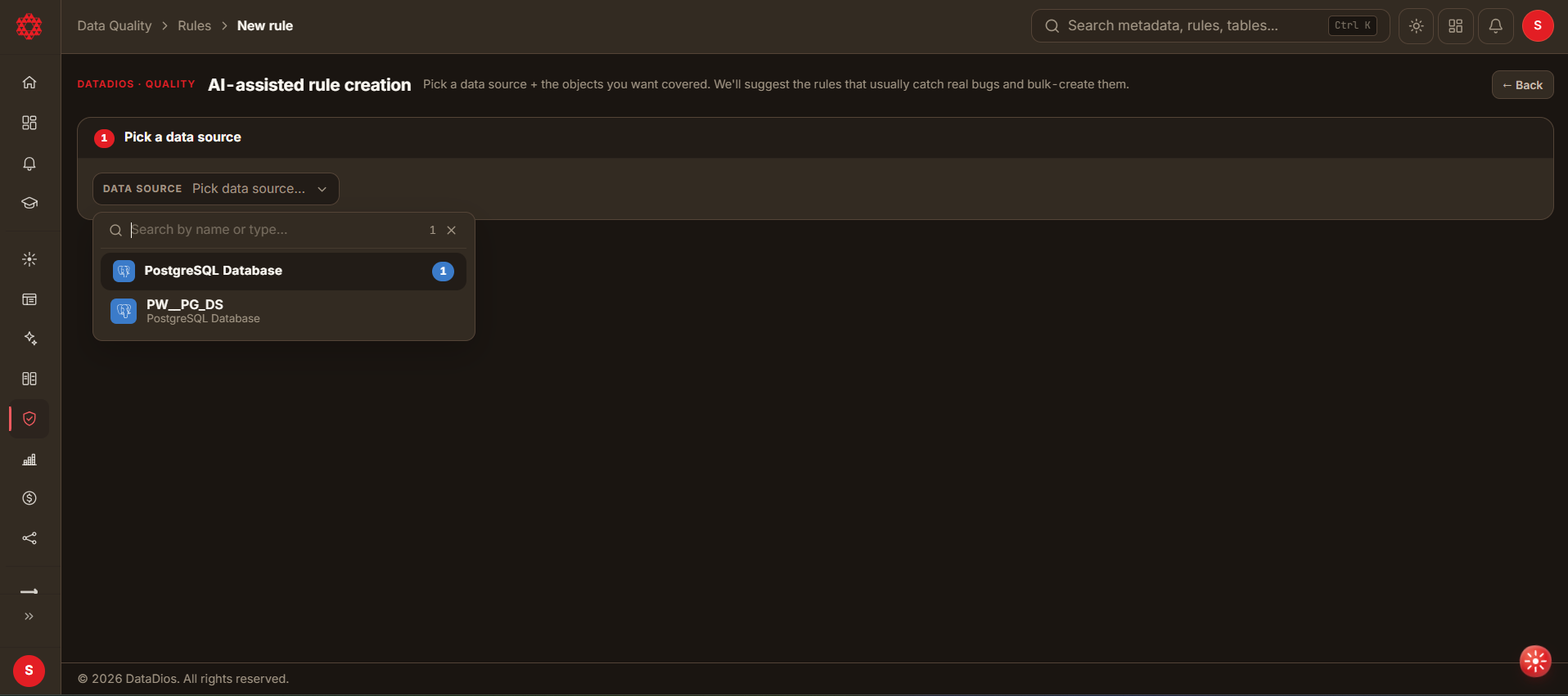
The data source must already be configured and connected in Data Explorer before it appears here.
Step 2: Pick objects to monitor
Once a data source is selected, the wizard shows a checkbox list of its tables:
- Filter box to search tables by name
- Select all visible / Clear actions
- Each row shows the table name and its schema (e.g.
quickstart.public)
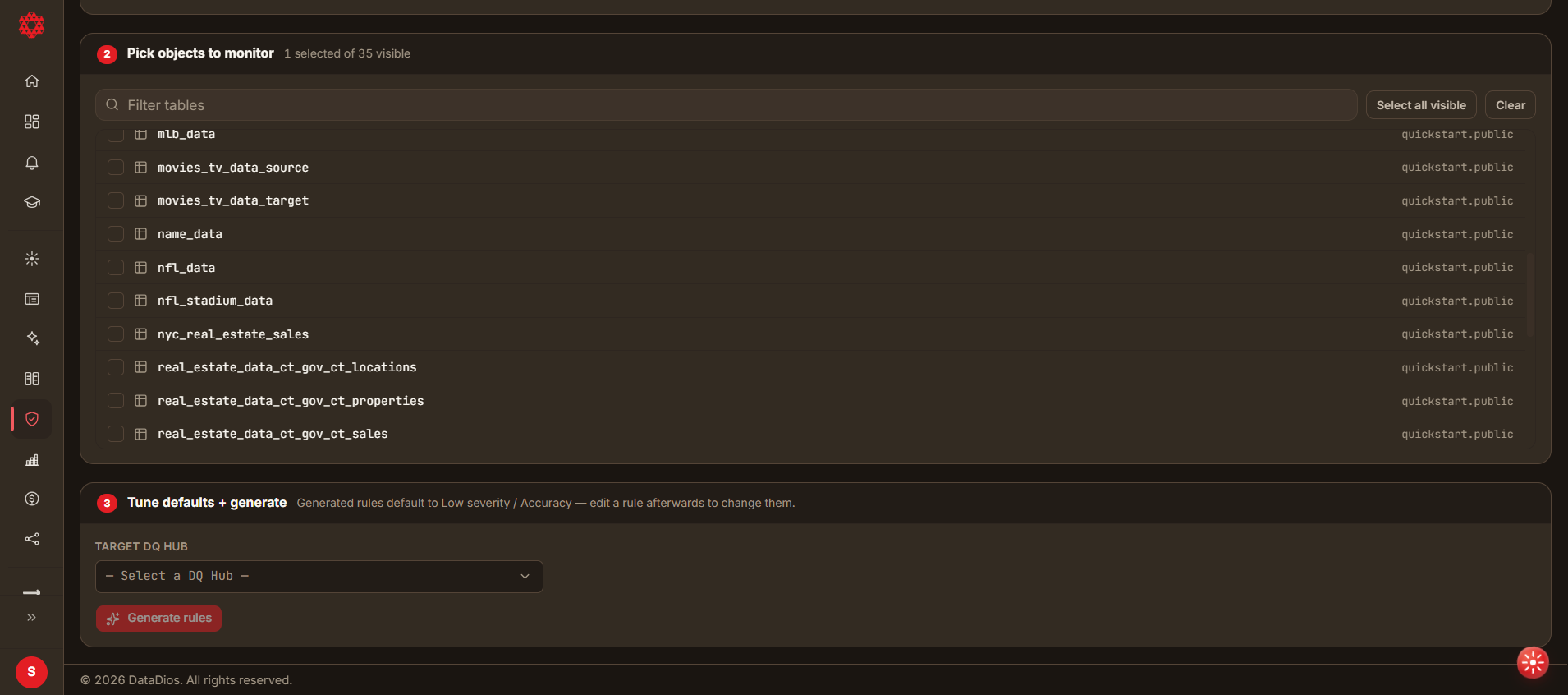
Pick objects to monitor, Tune defaults + generate (Step 3), and Review suggestions (Step 4, once you've generated) all appear on the same scrolling page in the wizard — you don't navigate away between them.
Selection guidance (still applies):
- Business Criticality - Focus on high-value business data
- Compliance Requirements - Include regulatory-required tables
- Data Volume - Start with critical tables before scaling
- Data Change Frequency - Prioritize frequently updated tables
Start with a handful of critical tables rather than selecting everything at once.
Step 3: Tune defaults + generate
The third stage lets you set the destination and kick off generation:
- Target DQ Hub — select the destination Quality Hub for the generated rules
- A note confirms the defaults: "Generated rules default to Low severity / Accuracy — edit a rule afterwards to change them."
- Click Generate rules
Generating suggests rules — it does not create them yet. Each selected table gets one AI call proposing rules for it; nothing is written to your Quality Hub until you explicitly accept and create them in the next step.
A batch is capped at 25 tables per generate. If you select more, unselect some or run additional passes afterward.
Step 4: Review suggestions
Once generation finishes, a fourth section appears: "Review N of M suggestions" — every suggested rule, grouped by the table it belongs to, all accepted by default.
For each suggestion you can see:
- The rule name and target column(s)
- A plain-language description of what it checks
- The exact name it will be created with
- What it checks, shown one of two ways depending on the rule's type:
- Structured rules (e.g. not null, unique, range, allowed values, pattern match) show a kind label plus the settings that make it up — no SQL to read, because the platform compiles it for you at run time.
- Custom SQL rules (needed for checks that span multiple columns or tables) show an expandable "View SQL condition" so you can inspect the generated SQL before accepting it.
Actions per suggestion:
- Uncheck it to exclude it from creation (without deleting it from the list)
- Click the trash icon to remove it from the list entirely
If any table failed to generate, a warning banner lists which ones and why — the rest of the batch is unaffected. If you change your table selection after generating, a banner prompts you to generate again before creating.
When you're happy with the selection, click Create N rules (the button label updates live with your count). Only then are the accepted rules written to the target hub — you'll see a confirmation toast ("Created N rules in <hub name>") and land back on the Rules tab.
Step 5: Review created rules
Navigation: Data Quality → Rules tab — newly created rules appear in the rule list like any other rule, filterable via the "Just created" preset.
- Examine Rule Details — open a rule to review its Definition tab for severity, dimension, and category
- Open its Conditions tab to see the exact SQL logic that was created for that table/column
- Adjust any defaults that don't match your business requirements
Step 6: Customize and execute rules
- Customize Rules as Needed
- Open the rule's Definition tab to adjust Severity, Category, Description
- Open Conditions to adjust the underlying SQL or assertions
- Execute Rules
- Click Run rule to trigger immediate execution
- View Results
- Open the rule's Results sub-tab to see the run history (pass/fail per run)
See Data Quality → Step 3: Manage and inspect rules for the full breakdown of a rule's detail tabs.
Best Practices
1. Object Selection
Do:
- Start small with a handful of critical tables before scaling
- Prioritize business-critical and compliance-required tables
- Group related tables together for consistent rule generation
Don't:
- Rely on "Select all visible" for a large schema — generation is capped at 25 tables per batch; anything beyond that is silently skipped (with a toast telling you how many were skipped)
- Generate rules for temporary or staging tables
- Skip validation of source data accessibility
2. Rule Management
After Generation:
- Always review and validate generated rules before relying on them in production
- Customize rule parameters (severity, category, description) to match business requirements
- Set appropriate severity levels based on business impact
Ongoing Maintenance:
- Periodically review rule effectiveness
- Update rules when schema changes occur
- Delete or disable obsolete rules
Troubleshooting
Issue 1: Rule Generation Fails
Symptoms:
- Error message displayed during generation
- No rules created in the target hub
Possible Causes:
- Source data source connectivity issues
- Insufficient permissions
- Invalid schema or table selection
Solutions:
- Verify the source data source's connection status via Test Connection (in Data Explorer)
- Check user permissions on both the source data source and the target Quality Hub
- Review any error messages shown in the wizard for specific details
Issue 2: Created Rules Not Appearing
Symptoms:
- You clicked Create N rules but the rules aren't visible in the Rules tab
Possible Cause:
- Generating only suggests rules — if you didn't click Create N rules on the Review suggestions step, nothing was ever written to the hub
Solutions:
- Confirm you actually clicked Create N rules (not just Generate rules) and saw the success toast
- Refresh the Data Quality page
- Confirm you're viewing the correct target hub — filter or search by hub name in the Rules list
- Use the "Just created" preset to quickly find recently generated rules
Issue 3: Incorrect or Unexpected Rules
Symptoms:
- Generated rules don't match expected patterns
- Rule logic seems incorrect
Solutions:
- Review table metadata (data types, constraints) for the selected tables
- Customize generated rules (Definition/Conditions tabs) to match business requirements
- Delete unwanted rules and create manual rules instead if needed
Appendix
Supported Data Source Types
Only these source types appear as pickable in the "Pick a data source" step:
| Data Source Type | AI-assisted bulk support |
|---|---|
| MySQL | Yes |
| PostgreSQL | Yes |
| SQL Server | Yes |
Other connected data source types (e.g. AI model providers, DQ Hubs themselves) don't appear here — only source databases the AI can read schema/metadata from.
Related Documentation
- Data Quality - Quality Hubs, rule creation, Overview, and Incidents