SmartDiff
Overview
DataDios SmartDiff is a comprehensive data validation solution that ensures easy, efficient, and secure validation of migrated data across private and public cloud platforms. Built on Root Cause Analysis, Clustering, and Data Transformation architecture, SmartDiff enables automated data validation post-migrations, cause analysis, and pattern recognition.
The Workflows List
SmartDiff in the left panel opens the Workflows list — the home page for every diff you've created, of any type.
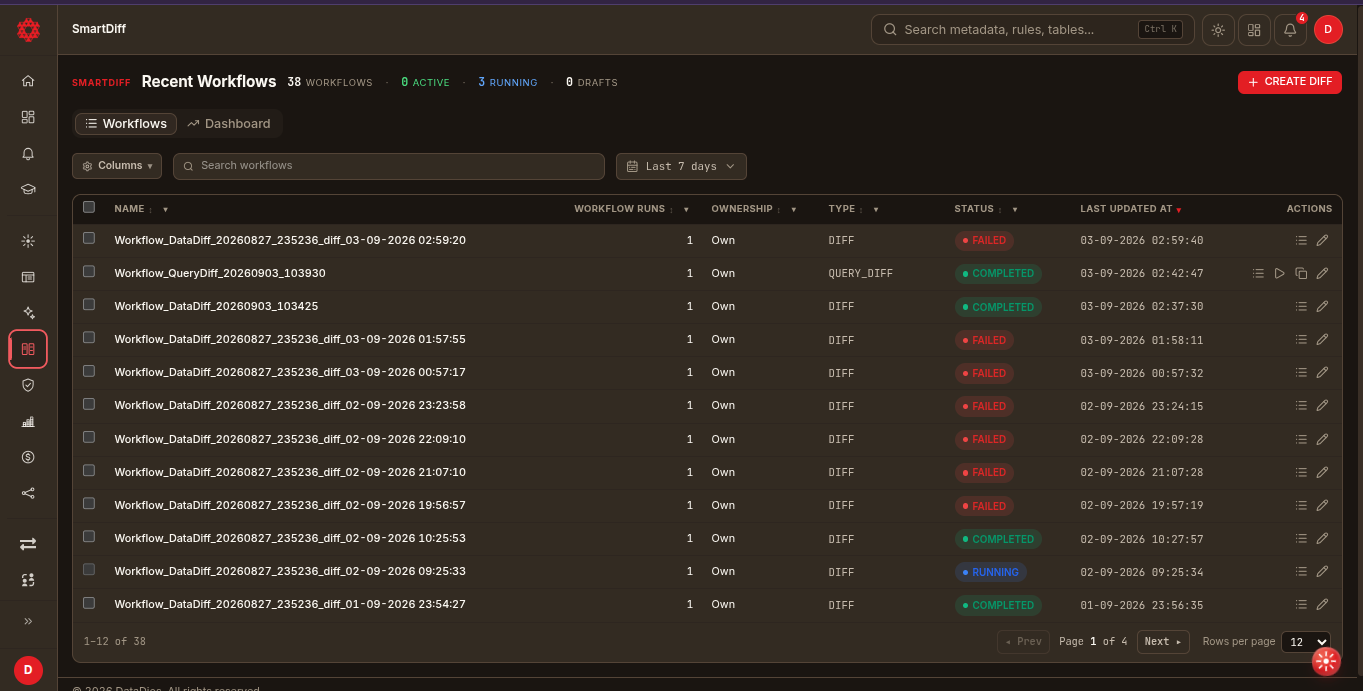
Header
The title bar carries a live count of your workflows, broken down by state: total workflows, active, running, and drafts (a draft is a workflow that was created but never run). + CREATE DIFF on the right creates a new draft and opens the editor.
Two views sit below it:
- Workflows — the list itself (shown above)
- Dashboard — cross-workflow rollups and trends
Filtering the list
| Control | What it does |
|---|---|
| Columns | Pick which columns the table shows |
| Search workflows | Filter by workflow name |
| Date range | Limit the list to a window (default Last 7 days) |
| Column headers | Sort, and filter per column, via the header controls |
Columns
| Column | Description |
|---|---|
| Name | The workflow name — click it to open the workflow |
| Workflow runs | How many times the workflow has run |
| Ownership | Own for workflows you created, otherwise the workflows shared with you |
| Type | DIFF for a Data Source Diff, QUERY_DIFF for a Query Diff |
| Status | COMPLETED, RUNNING, FAILED, or draft/pending for a workflow that hasn't run |
| Last updated at | When the workflow last changed — the default sort |
| Actions | Per-row quick actions (see below) |
Each row has a checkbox, and the one in the header selects every row on the page.
Row actions
Which icons a row shows depends on its workflow type and status, so not every row offers every action below.
| Action | Icon | What it does |
|---|---|---|
| View logs | List | Opens the run's logs |
| Run diff | Play | Runs the workflow immediately and opens it on the Results tab, which live-updates as the run completes |
| Duplicate workflow | Copy | Clones the type, data sources, queries, mappings, filters, transforms, and configuration into a new draft and opens it in the editor |
| Edit workflow | Pencil | Opens the workflow in the editor on the Mapping tab |
Clicking a workflow's name opens it on the Results tab; opening it via Edit workflow lands on Mapping instead.
Pagination
The footer shows the current range and total (e.g. 1–12 of 38), with Prev / Next, the page number, and a Rows per page selector.
Key Features
- Query Diff - Compare data using SQL queries
- Data Source Diff - Compare entire data sources or tables
- File Diff - Compare file-based data in various formats
Validate, Cause Analysis, Identify Pattern
SmartDiff addresses significant organizational concerns including data mess, data automation, and data validation by detecting the cause or patterns of invalid data post-migration. Unlike expensive migration tools that often result in failed jobs, missed deadlines, and exceeded budgets, SmartDiff provides comprehensive validation capabilities.
Flexible Multi-Platform Data Validation
SmartDiff provides a balanced, multi-cloud strategy encompassing private, public, and hybrid cloud environments. It offers:
- Easy, efficient, and secure data validation across platforms
- Automated data validation post-migrations
- Cause analysis and pattern revelation
- Data transformation rule application
- Elimination of multiple standalone tools
Cost Efficiency
- Low-cost, easy-to-use solution that can be installed anywhere
- Completes migration projects within budget
- Automatically migrates data between sources
- Avoids installation of expensive standalone tools
Easy-to-Use Interface
- User-friendly graphical interface (GUI) with step-by-step guidance
- Wizard-like experience with built-in capacity analysis
- Simplifies large and complex validation processes
- Identifies data issue patterns effectively
Optimization Capabilities
- Complete granular and programmatic control over migrated data
- Automated approach allows data issue fixing during migration
- Reduces costs and project time
- Minimizes downtime during migration projects
Meeting Deadlines
- Automation reduces time spent by employees and contractors
- Eliminates need for multiple migration products or custom scripts
- Streamlines the entire validation process
Benefits
- Easy-to-use Experience: Wizard-like interface for post-migration data validation with intuitive GUI
- Pattern Understanding: Data issue pattern recognition using clustering mechanisms
- Seamless Connectivity: Various data sources and files can be connected for validation
- One-Stop Solution: Root Cause Analysis, Clustering, and Data Transformation architecture
- Focused Validation: Metadata filtering to speed up migration processes
- Increased Flexibility: Data transformation rules and metadata filtering capabilities
- High Success Rate: Industry's highest rate of successful data validation
- Parallel Processing: Run multiple jobs simultaneously for faster completion
- Scalability: Accelerate large and complex migrated data validation
Supported Data Sources
SmartDiff supports any kind of data source including:
- Cloud-based managed services
- On-premises databases
- File-based systems
- Hybrid environments
Some sources have their own notes. See SmartDiff on Databricks for three-part table names, the Unity Catalog grants a diff needs, and how a large Databricks table is batched.
How to Use SmartDiff
- Query Diff - Compare data using SQL queries
- Data Source Diff - Compare entire data sources or tables
- File Diff - Compare file-based data in various formats
Best Practices
Before Starting
- Ensure proper connectivity to all data sources
- Verify data source permissions and access rights
- Plan key column mapping strategy
- Identify critical tables and files for validation
During Execution
- Monitor progress through the live reporting interface
- Use filtering options to focus on specific difference types
- Take advantage of clustering capabilities for pattern recognition
- Document any unexpected patterns or issues
After Completion
- Export detailed reports for documentation
- Analyze patterns to improve future migrations
- Share findings with stakeholders
- Use insights to optimize subsequent validation processes
Troubleshooting
Common Issues
- Connection Problems: Verify data source connectivity and credentials
- Key Column Mapping: Ensure selected key columns exist in both source and target
- Performance Issues: Consider filtering metadata to improve processing speed
- File Format Issues: Verify CSV/XML file formatting and encoding