Search the Query
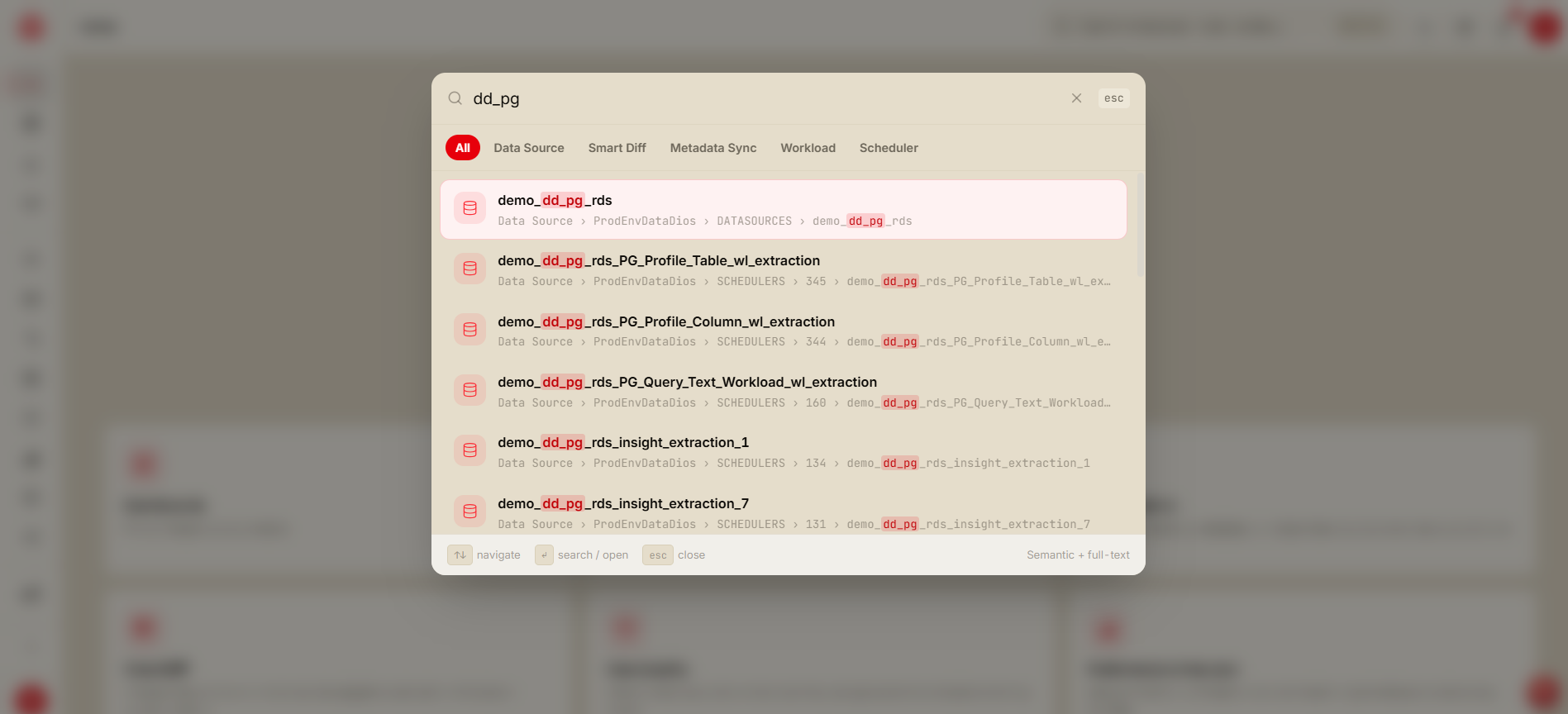
Once Hybrid Search is enabled and configured, users can perform search queries as follows:
- Allow a few minutes for data conversion and activation.
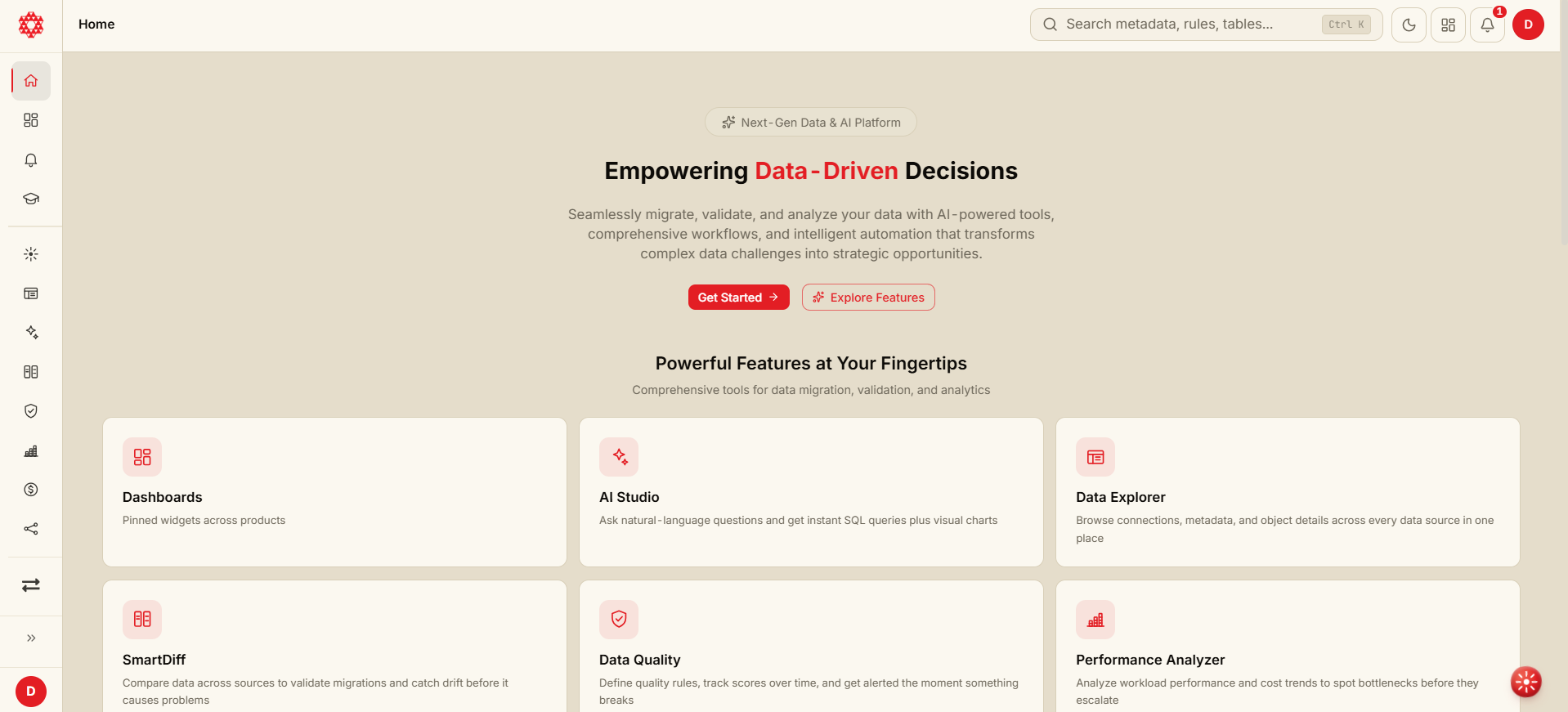
- A search trigger is always visible in the top navigation bar (a labeled search box on desktop, an icon on narrow screens). Click it, or press Ctrl K (⌘K on Mac), to open the search dialog.
- Type your query and press Enter to run it. A minimum of 3 characters is required; the search does not run on every keystroke.
- Optionally narrow results: All, Data Source, Smart Diff, Metadata Sync, Workload, Scheduler.
- When Hybrid Search is enabled for your account, both Full Text and Semantic Search are performed for the query.
Search results:
- Are ranked based on matching score.
- Press ArrowRight on a selected result to enter its action list, then use Tab and Enter to choose an action.
- Can be navigated with the ↑ / ↓ arrow keys, opened with Enter, and the dialog closed with Esc.
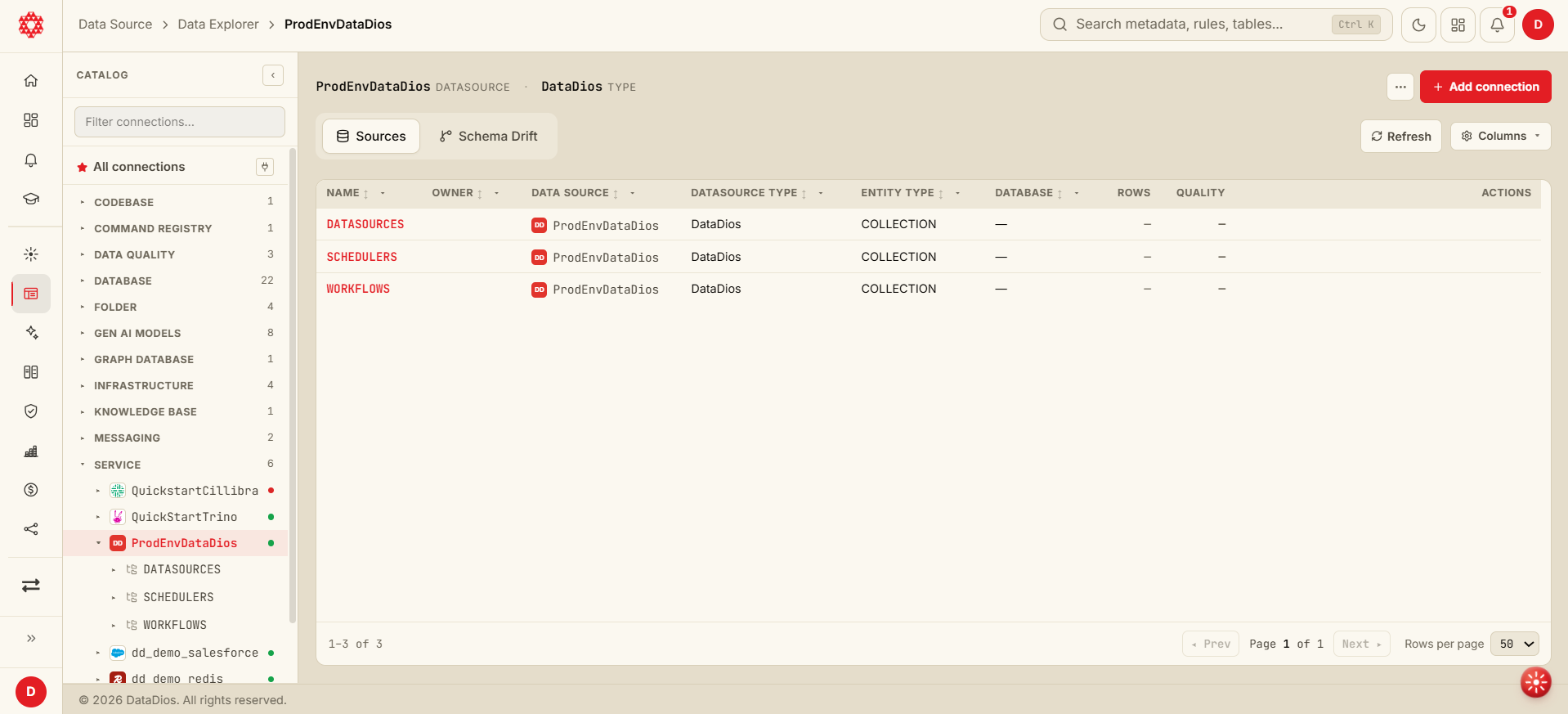
- Click a result (or select it and press Enter) to open it. Where it takes you depends on the result's category:
| Category | Opens |
|---|---|
| Data Source | The data source, or the object inside it, in Data Explorer |
| Smart Diff, Metadata Sync, Workload, Scheduler, Users, S2P, P2P | That module's list page (not the specific item) |
- Data Source results expose List Objects and Timeline View when the result points to a data source.
- Eligible object results expose Data Preview, Metadata, and Lineage. These actions are available for objects whose type is TABLE, VIEW, or CSV. Other object types open without these actions.
When an object result can't be opened as found
Data Explorer looks the object up by its full path, so names that contain dots or other separators still open the right object. If it can't settle on one object, it shows a message instead of guessing:
- Not found: "name wasn't found in data source." The object may have been renamed or removed since it was indexed.
- Too many matches: "Too many objects containing "name" in data source — open it from the catalog." The name matches many objects, so open the Data Explorer catalog and pick the exact one there.
- More than one match: "More than one object matches name in data source — open it from the catalog." Open the Data Explorer catalog and pick the exact object there.
Some connectors don't support every object tab. If the action you chose opens a tab the data source doesn't have, Data Explorer opens the object's first available tab instead and says so, for example "Lineage isn't available for this data source — showing Metadata."
For additional support or advanced features, contact the DataDios support team.