CSV File Diff
Overview
The CSV File Diff feature lets you compare data across CSV or other table-structured files (such as TSV, Excel, etc.). This is useful for validating file exports, ETL processes, or migrations.
Video Demonstration
How to Use SmartDiff CSV File Diff
Step 1: Open SmartDiff
- Select SmartDiff from the left panel — this opens the Workflows list
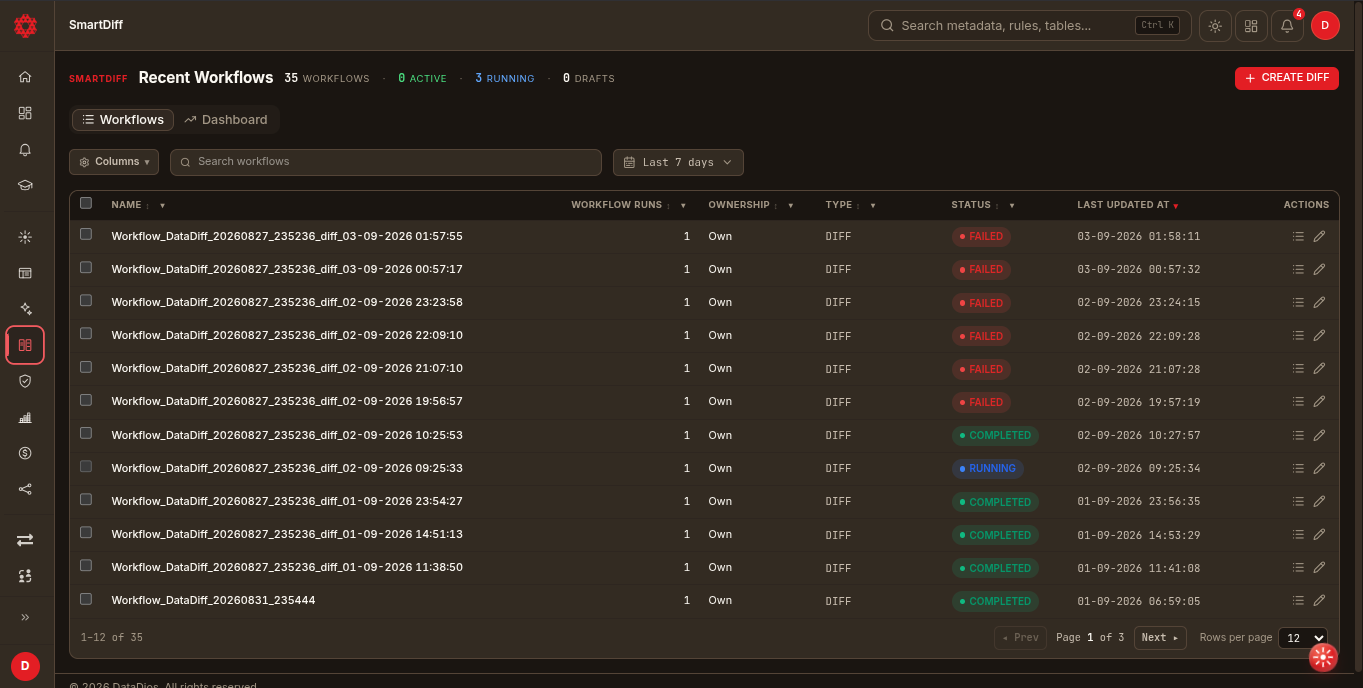
Step 2: Create a New Diff Workflow
- Click + Create diff. This creates a draft workflow and opens the editor directly.
Step 3: Switch to File Type
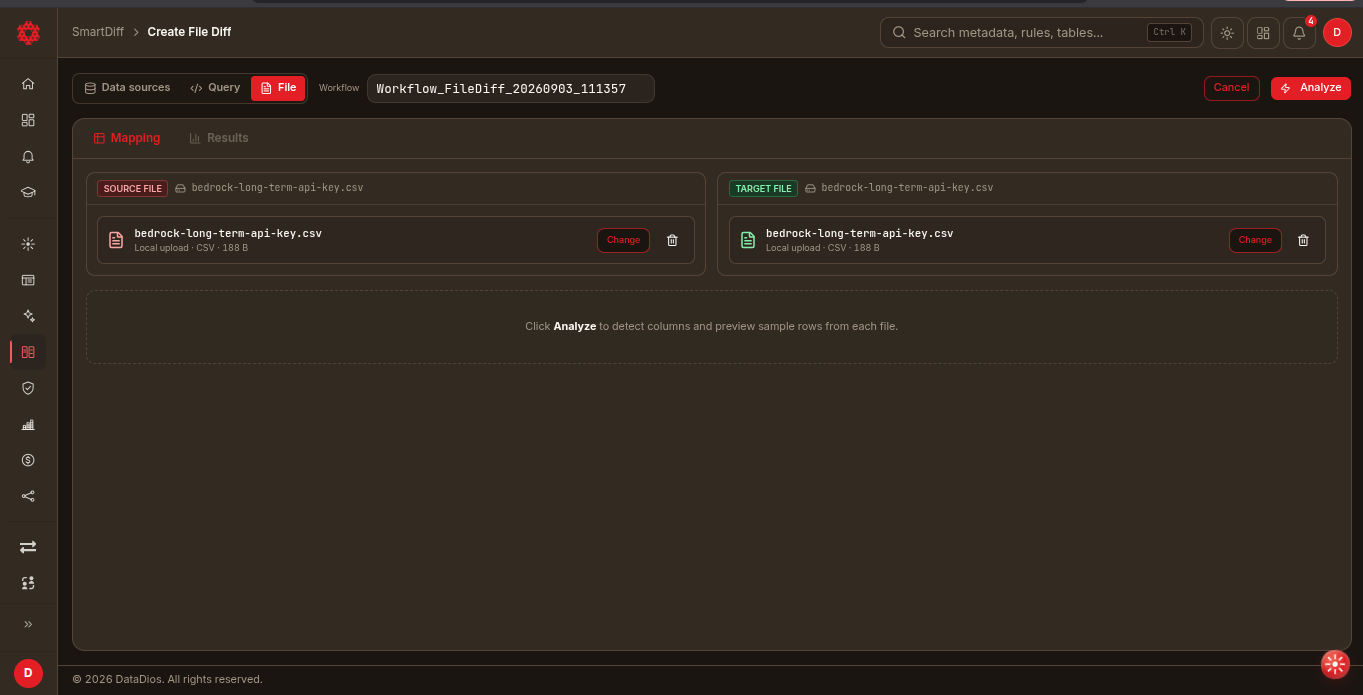
- In the metadata strip at the top of the editor, switch the type tabs from Data sources (default) to File
- Source folder / Target folder pickers become available — pick a datasource to scope the file pickers, or leave blank and pick files directly per pair
Step 4: Add a File Pair
Open the Mapping tab — for a File-type workflow this is a master-detail layout of file pairs:
- Left rail — click Add pair to create a new pair (named
file_pair_1,file_pair_2, …); each row shows its status (Files not selected/Not analyzed/Needs a key column/ mapped column + key count) - Right pane — pick a source and target file for the pair, for example: movies_tv_data_source.csv vs movies_tv_data_target.csv
Step 5: Analyze
- Click Analyze once both files are picked
- This infers the column schema and sample rows for both files, auto-maps exact-name columns into the mapping table, and collapses the file pickers to make room for the results
- Use Re-analyze if you swap either file afterward
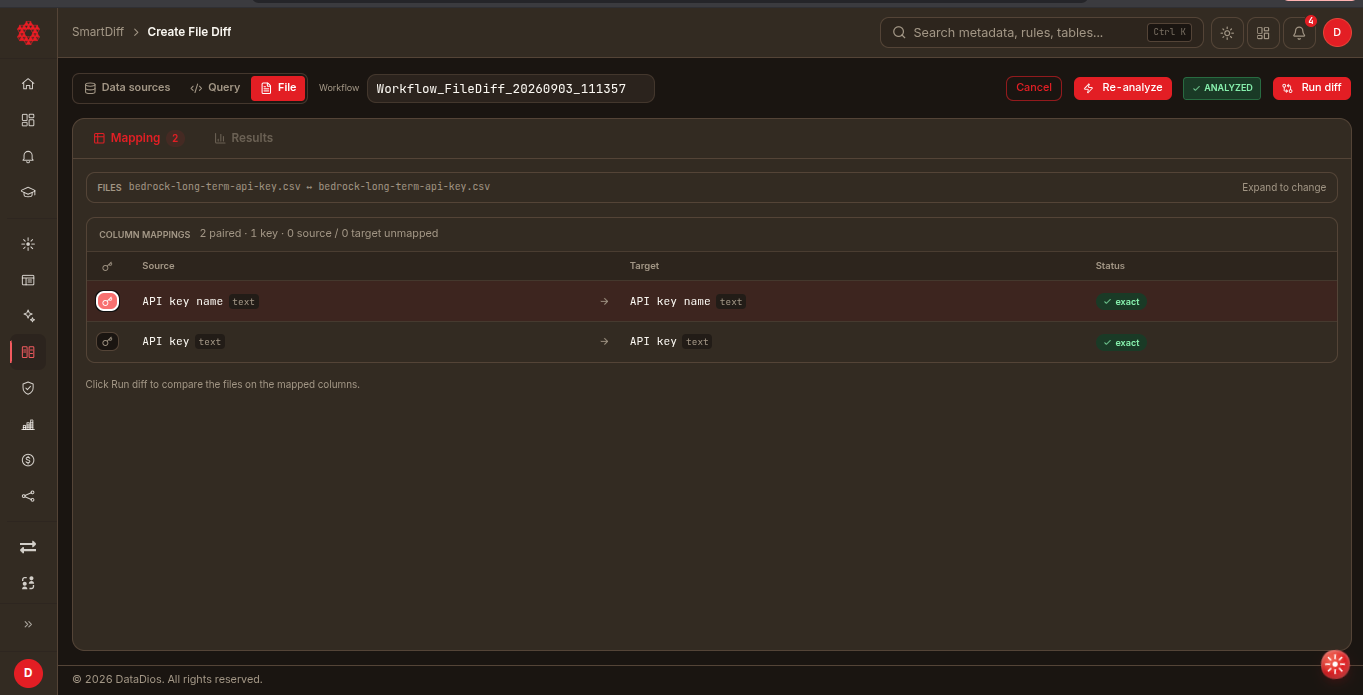
Step 6: Review Column Mapping
- The column mappings table lists each paired column with its source/target type and match status (
exact,auto-fixed,name diff,AI suggested,type mismatch) - Toggle the key icon on a column to mark it as part of the comparison key
- Columns that didn't get an exact-name match appear in the Unmapped columns section below — pair them manually with the dropdown + Pair button, accept high-confidence matches with Accept all fuzzy, or use Auto-map remaining
Step 7: Configure (Optional)
- Configuration tab — engine, summary, and storage settings
- Validation tab — pre-flight checks; resolve anything flagged as danger before running
note
File Diff workflows don't have separate Filters or Transforms tabs — those are only available on Data Source Diff workflows. See Data Transformation for the full transform guide.
Step 8: Run and View Results
- Click Run diff in the header. The editor switches to the Results tab; the other tabs disable while the run is in progress.
- The left rail lists your file pairs with status and accuracy; select All pairs for the aggregate view or a specific pair for its detail.
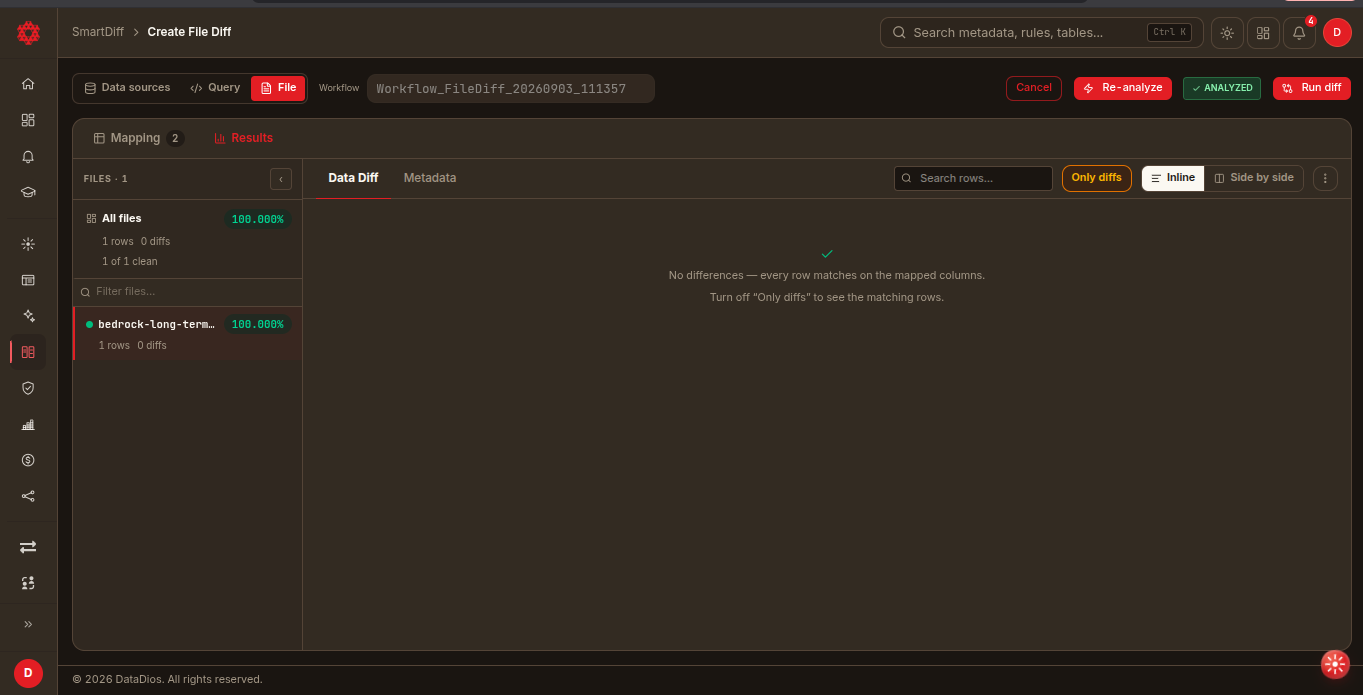
Diff Overview
Shows high-level differences between files, in the All pairs insights view:
- Rows compared, Matches, Diffs, Accuracy stat cards
- Root cause clusters and a per-pair accuracy bar list
Summary
- All data: All columns with counts
- Only diff: Only differing columns
- By source / By target: Frequency-based comparisons
- Export: CSV/PDF
Meta Diff
- Shows metadata differences per column (name, datatype, etc.)
- Highlights differences with color coding
- Export available from the chrome row
Data Diff
- Groups differences into clusters
- Only diffs toggle plus row search
- Hide non-relevant columns
- Export: CSV/PDF
Related Guide
- For XML comparisons, see XML File Diff