AI Chat
Overview
AI Chat is a dedicated worksheet mode for natural language interaction with your data. Ask questions in plain English, get SQL query suggestions, explore database schemas, and troubleshoot issues — all within its own worksheet tab.
Accessing AI Chat
Click the + button in the tab bar, enter a Worksheet name, select AI Chat, and click Create worksheet. The new worksheet opens with the AI badge in its tab.
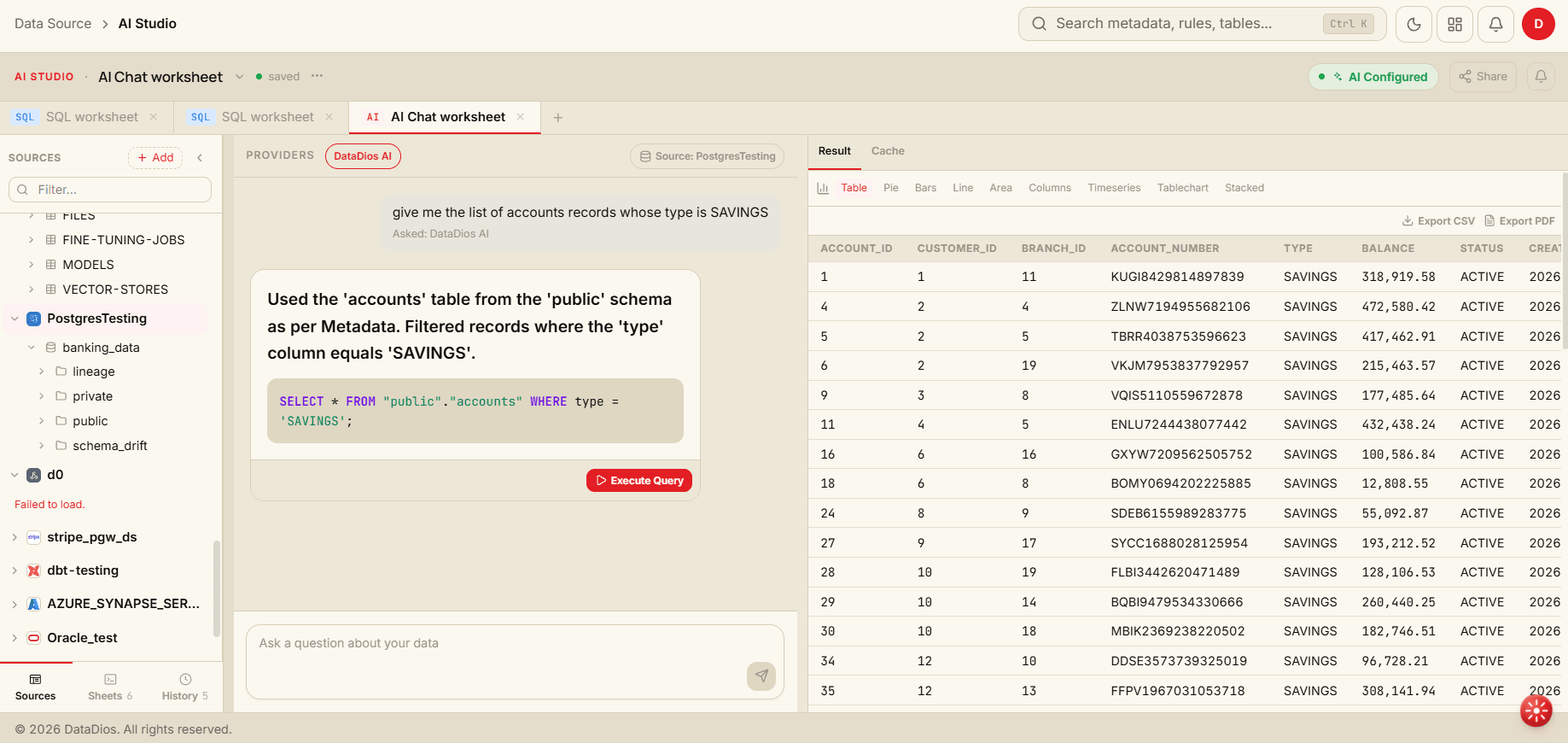
Note: The AI Status Pill in the top-right corner must show as configured (green) for AI Chat to function. If it shows "Not Configured" (orange), contact your DataDios administrator to set up an AI provider.
What You Can Ask
1. Natural Language to SQL
Transform business questions into executable SQL queries.
Examples:
- "Show me the top 10 customers by revenue"
- "Find all orders from last month"
- "What are the average sales by region?"
- "List products that haven't been ordered in 90 days"
How it works:
- Type your question in plain English
- AI analyzes your datasource schema
- Generates optimized SQL query
- Provides explanation of the logic
2. Schema Exploration
Understand your database structure without writing queries.
Examples:
- "What columns are in the orders table?"
- "How are customers and orders tables related?"
- "What's the structure of the products table?"
- "Show me all tables in this database"
- "What are the primary and foreign keys in the sales table?"
Benefits:
- Discover available data without manual documentation lookup
- Understand table relationships and dependencies
- Learn data types and constraints
- Identify join opportunities
3. Query Optimization & Debugging
Get help improving performance and fixing errors.
Examples:
- "Help me optimize this slow query"
- "Why am I getting a syntax error?"
- "How can I join these three tables?"
- "This query is taking too long, what's wrong?"
- "How do I add an index to improve performance?"
AI Capabilities:
- Identifies missing indexes
- Suggests query restructuring
- Explains error messages in plain language
- Recommends best practices for your datasource type
Using AI-Generated SQL
Step 1: Select a Datasource
In the Catalog Rail (left sidebar), select the datasource you want to query. This gives the AI context about your schema.
Step 2: Ask Your Question
Type your question in the AI Chat worksheet and press Enter.
Step 3: Review AI Response
The AI will provide:
- Generated SQL code in a formatted code block
- Explanation of the query logic
- Any relevant notes or recommendations
Step 4: Insert into SQL Worksheet
Use the insert action on the generated SQL to add it to an open SQL worksheet tab, where you can review and modify it.
Step 5: Execute
Switch to the SQL worksheet tab, verify the query, and click Run to execute and view results.
Conversation History
The AI Chat worksheet maintains context throughout your session, allowing for follow-up questions. You can also access the conversation history from any SQL worksheet by switching to the Conversation view mode in the editor toolbar.
Ask AI from a SQL Worksheet
You don't have to open an AI Chat worksheet to use the assistant. Every SQL worksheet has an ASK AI box below the editor — type a question there ("give me invalid account numbers from accounts table") and the assistant answers against the source selected in the Catalog Rail.
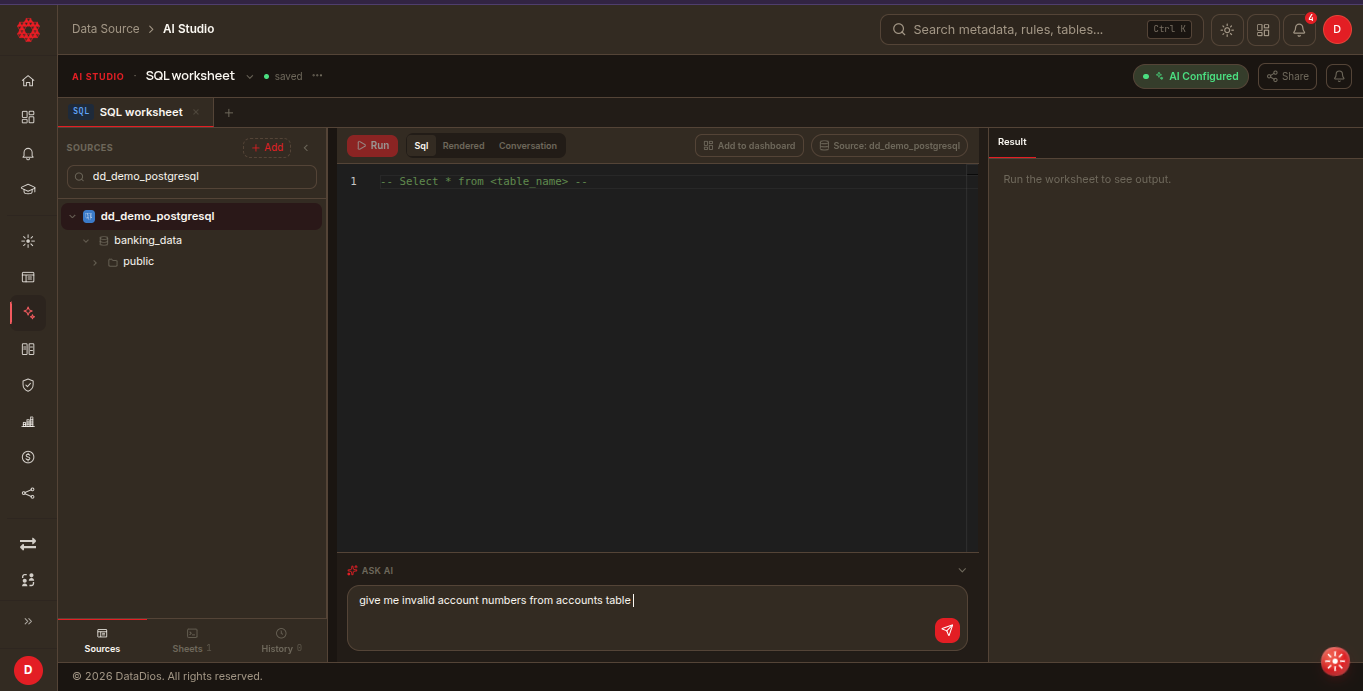
The editor toolbar switches between three views of the same worksheet:
| View | Shows |
|---|---|
| Sql | The SQL you (or the AI) wrote — the editable query |
| Rendered | The query with its parameters and variables resolved |
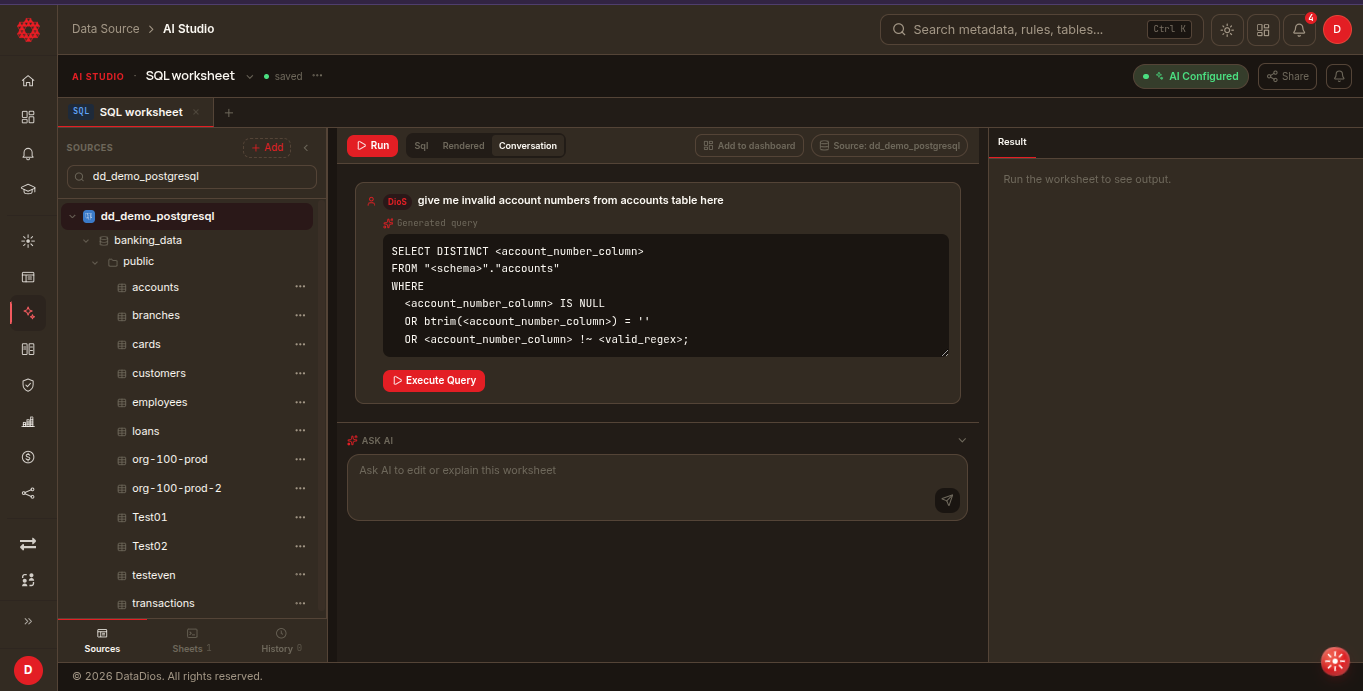
| Conversation | Your questions and the AI's replies, each with its Generated query |
In the Conversation view, each generated query has an Execute Query button that runs it and drops the output into the Result panel on the right.
When the assistant can't resolve a column or schema from the selected source, it answers with a template instead — <account_number_column>, <schema> and similar placeholders, as in the capture below. Replace those (here, or in the Sql view) before clicking Execute Query; running the template as-is fails.
AI Chat vs SQL Worksheet
| Feature | AI Chat Worksheet | SQL Worksheet |
|---|---|---|
| Input method | Natural language | SQL code |
| Best for | Exploration, learning, quick answers | Precise queries, complex SQL |
| AI required | Yes | Optional (AI can assist via Conversation view) |
| Execute queries | Via insert into SQL worksheet | Directly with Run button |