Datasource SQL
Overview
The Catalog Rail in AI Studio provides a browsable sidebar to explore all your connected datasources. Navigate through databases, schemas, and tables in a tree view — then select a source as context for your worksheet.
Selecting a Datasource
The Catalog Rail
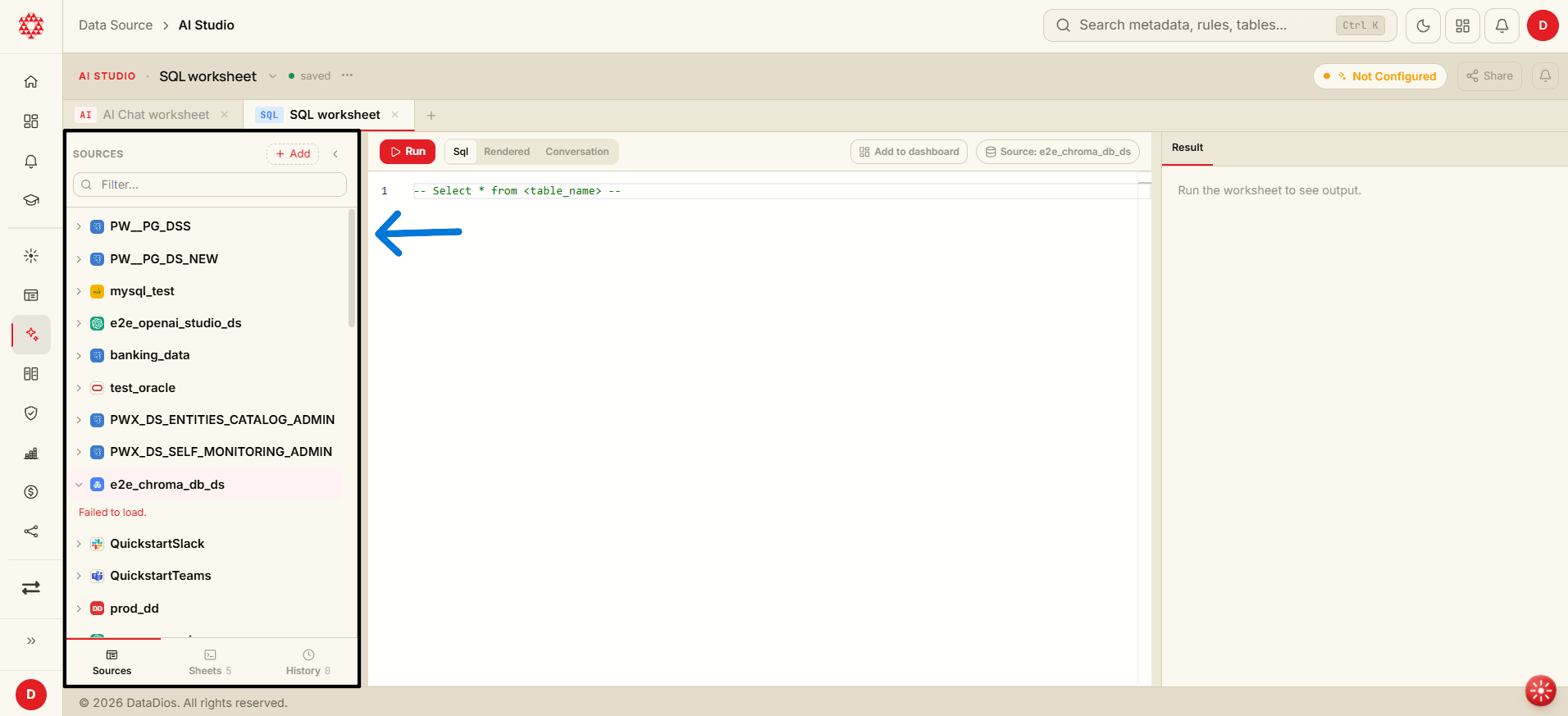
The Catalog Rail is the left sidebar in AI Studio. It displays all your connected datasources with their provider icons (PostgreSQL, MySQL, Oracle, etc.).
Adding a Datasource
Click the + Add button at the top of the Sources panel to connect a new datasource directly from AI Studio. This opens the datasource connection dialog without leaving your workspace.
Navigating the Source Tree
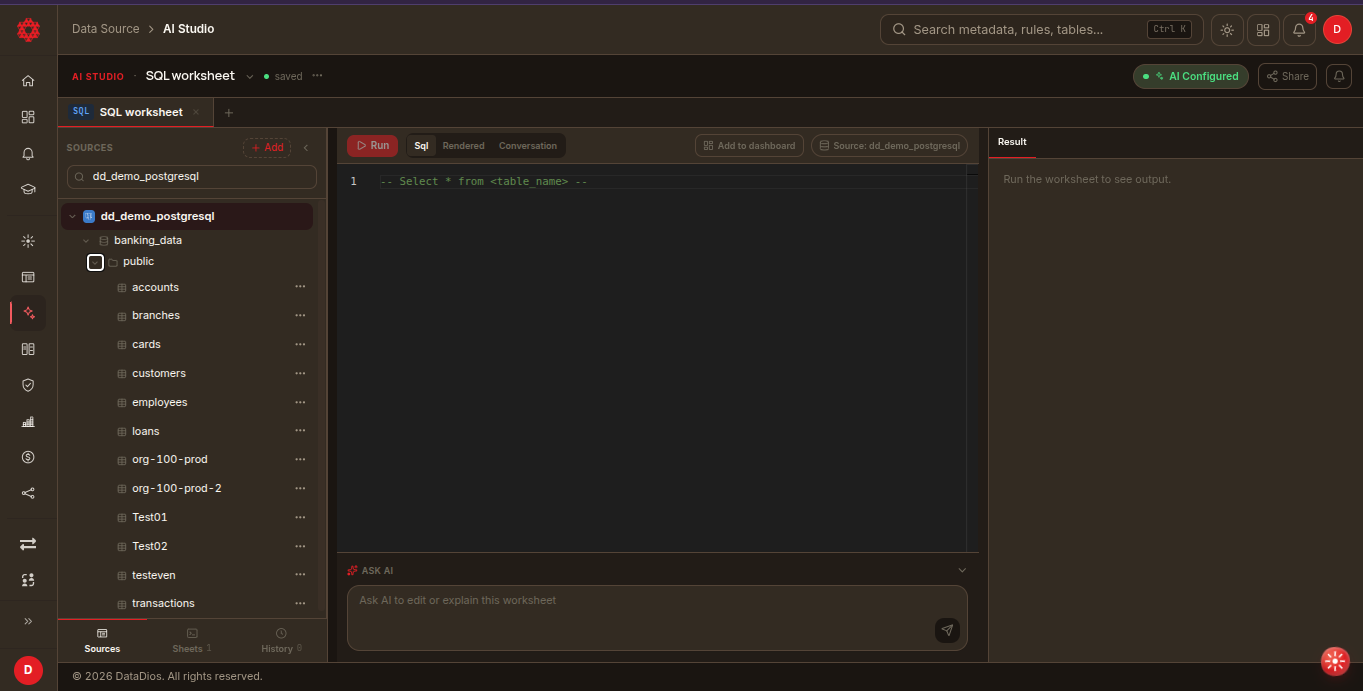
- Expand a datasource by clicking the arrow next to its name
- Browse databases and schemas within the expanded tree
- View tables at the deepest level
- Search using the filter box at the top to quickly find a specific source or table
Selecting a Source
Click on a datasource or table to set it as context for your active worksheet. The editor will show "Select a source to run SQL" until a source is selected.
Visual Indicator: The selected source is highlighted in the Catalog Rail, so you always know which database your queries will run against.
Expanding a datasource down to its schema shows every table alongside the SQL editor, so you can explore the schema and write against it on the same screen. The … menu on a table gives per-table actions, and the checkbox next to a schema scopes the AI to just that part of the tree.
Sidebar Tabs
The Catalog Rail has three tabs at the bottom:
Sources
Browse all connected datasources in a tree view. This is the default tab.
Sheets
View all your worksheets in one place and quickly switch between them. The count shows how many worksheets your account has; while more worksheets are left to load, it reads loaded out of total (for example, 100 of 120).
History
View your recent query execution history. Click any history entry to jump back to the worksheet where it ran.
Example: Working with Trino DataSource
- In the Catalog Rail, expand the Trino datasource.
- Browse the available catalogs and schemas.
- Select a table to set it as context for your worksheet.
- Run queries or open an AI Chat worksheet for help with Trino-specific syntax.
- Trino queries differ from other databases (e.g., PostgreSQL) due to SQL dialect differences.
- The catalog and schema should be mentioned in the queries.
- Using Trino, you can query data from multiple sources (e.g., MySQL, PostgreSQL) and even combine them.
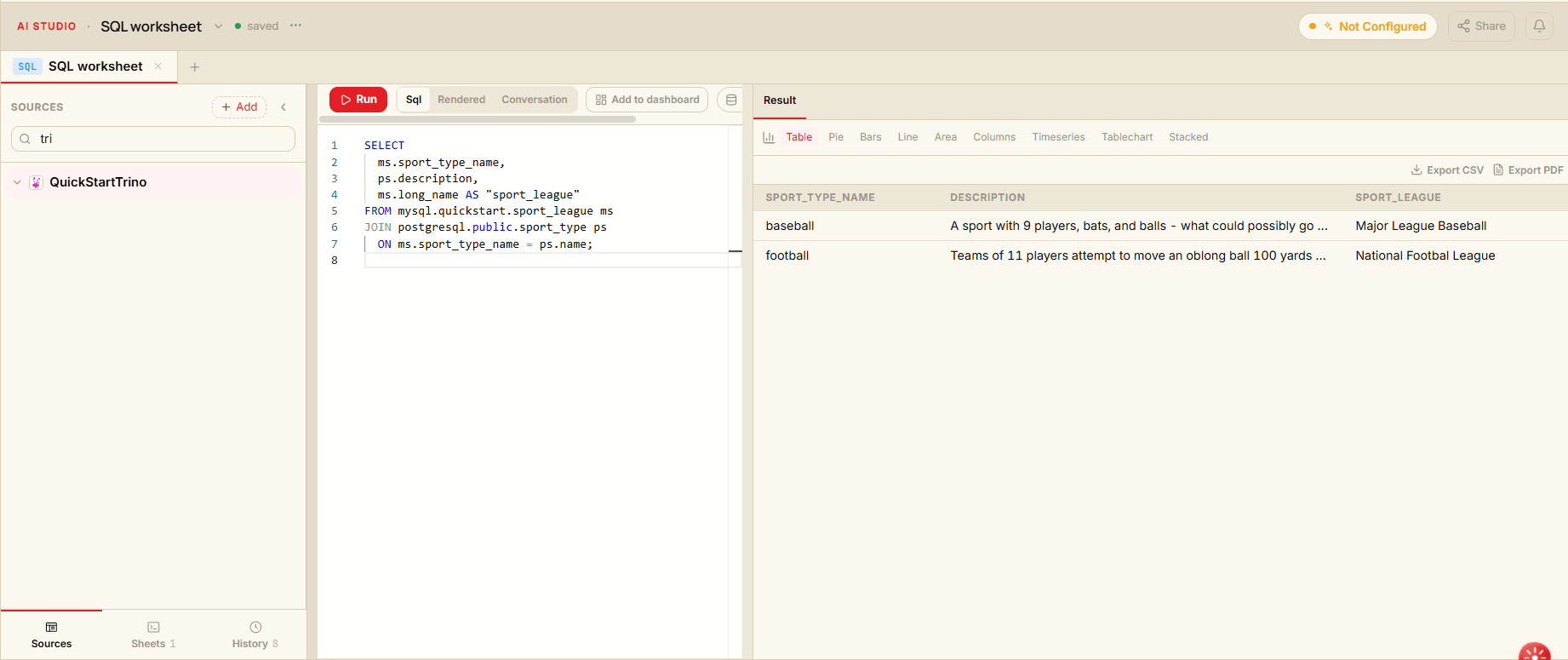
Example Query for Trino:
SELECT
  ms.sport_type_name,
  ps.description,
  ms.long_name AS "sport_league"
FROM mysql.quickstart.sport_league ms
JOIN postgresql.public.sport_type ps
  ON ms.sport_type_name = ps.name;
In this example, data is queried from two different databases — MySQL and PostgreSQL — using Trino as a datasource.
Working with Multiple Datasources
Switching Between Datasources
Select a different source in the Catalog Rail at any time without losing your work in open worksheets.
When you switch datasources:
- Existing SQL code in worksheets remains unchanged
- Query execution targets the newly selected datasource
- AI Chat worksheets update to use the new schema context
- Previous result sets remain visible in the Result panel
Multi-Worksheet Workflow
Use separate worksheets to work with different datasources simultaneously:
- SQL worksheet 1: Select Production DB from Catalog Rail, run query
- SQL worksheet 2: Select Staging DB, test modifications
- AI Chat worksheet: Ask questions about any selected source
Datasource Configuration
Pre-Configured Datasources
Datasources displayed in the Catalog Rail are pre-configured by your DataDios administrator.
Typical datasources include:
- Production databases
- Staging/development environments
- Data warehouses
- Analytics databases
- Backup/archive databases
Datasource Metadata
Each datasource shows:
- Provider icon — Visual indicator of the database type (PostgreSQL, MySQL, Oracle, etc.)
- Datasource name — The configured name for quick identification
Note: Datasource connection settings are managed at the platform level and not configurable within AI Studio.