DataDios Resource Center
Overview
The Resource Center is the administration interface for managing shared resources and users across the platform. It provides centralized control over data sources, workflows, and user access permissions.
Accessing the Resource Center
- Login to DataDios: Navigate to
https://prod.datadios.com/and log in with your credentials - Navigate to Manage: Click on the "Manage" tab in the left navigation sidebar
- Open Resource Center: Click on "Resource Center" from the Manage submenu
Resource Center Interface
The Resource Center is organized into the available Resources and Users tabs:
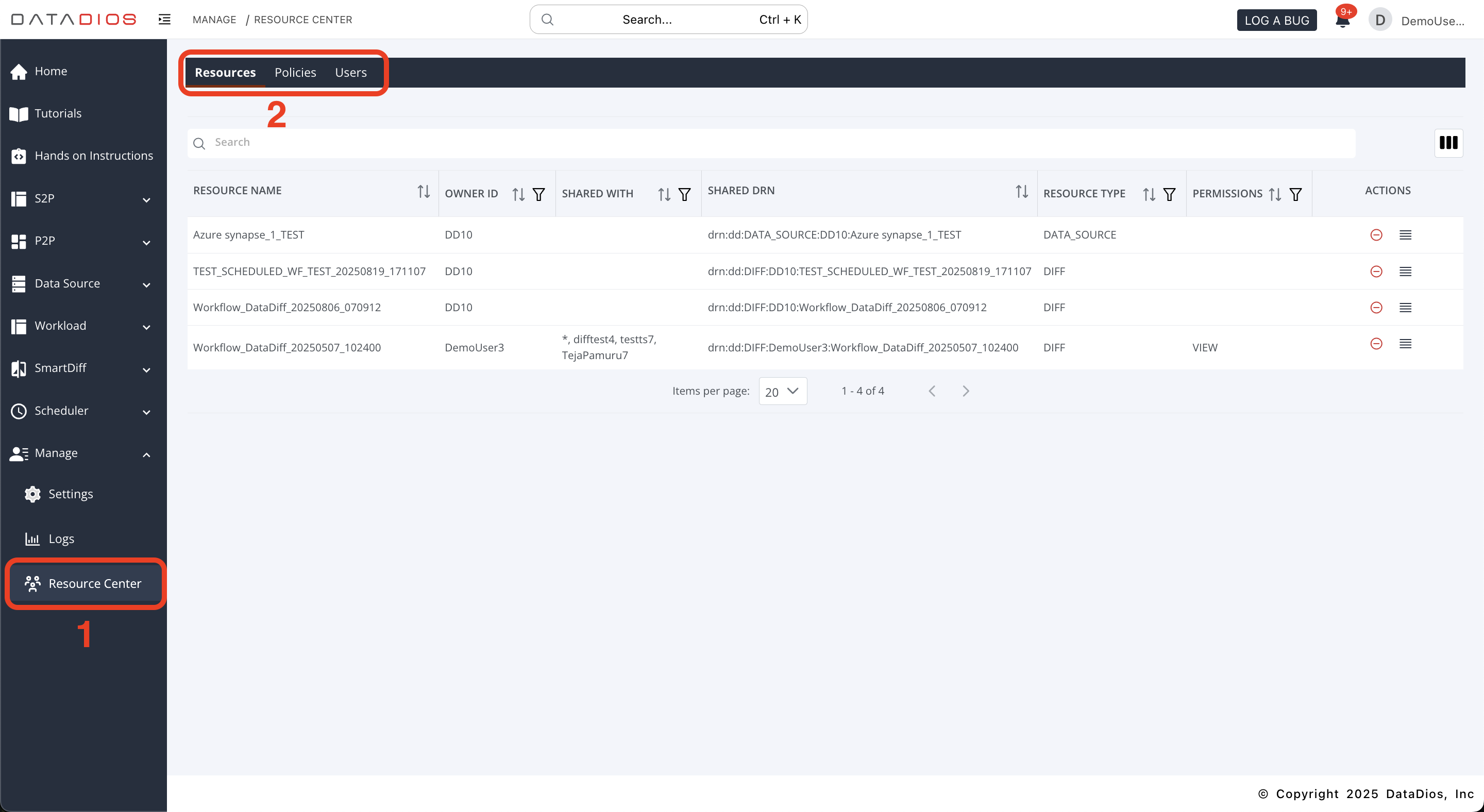
1. Resources Tab
The Resources tab displays all shared resources within the DataDios platform, including data sources and workflows. This tab provides comprehensive resource management capabilities with advanced sharing and permission control features.
Features:
- Search Functionality: Search across all resources using the search bar
- Column Management: Customize visible columns using the column selector
- Sortable Columns: Click on column headers to sort data
- Pagination: Navigate through large datasets with pagination controls
Resource Information Displayed:
- Resource Name: The name of the resource
- Owner ID: The user who created/owns the resource
- Ownership: Resource ownership status (Own, Shared)
- Shared With: Users or groups with access to the resource
- Shared DRN: Data Resource Name (unique identifier)
- Resource Type: Type of resource (DATA_SOURCE, DIFF, etc.)
- Permissions: Access level granted (VIEW, CREATE, UPDATE, DELETE, SQL ACCESS)
- Actions: Available actions for each resource
A DataDios data source cannot be shared
From the DataDios release after v1.13.0, a data source of type DataDios, such as datadios_self, cannot be shared with anyone, and neither can a workload chart that reads one. A DataDios data source signs in to a DataDios account, usually your own, and reads its data sources, workflows and schedulers. In earlier versions both can be shared.
From that release:
- Share data source is not offered for a DataDios data source. For a workload chart over one, neither Share graph nor Share with more users is offered.
- A share request that includes one anyway is refused with the message
Data source '<name>' cannot be shared. Nothing in that request is shared, not even the other resources in it. - On a dashboard shared with you, a workload chart or insight widget over the owner's DataDios data source does not load. It shows
This widget runs the owner's SQL and isn't available on a shared view.That message is shared with other widgets that cannot run on a shared view; here the reason is that the data source cannot be shared. The owner still sees these widgets on their own dashboard. - The upgrade to that release removes every existing share of a DataDios data source, and every share of a workload chart over one. The people they were shared with are not told, and the shares cannot be put back.
Policies
The Policies surface is coming soon in the new interface. The current Resource Center does not create or manage standalone policies.
2. Users Tab
The Users tab provides comprehensive user management capabilities for admins to view, add, update, and delete user accounts within the DataDios platform.
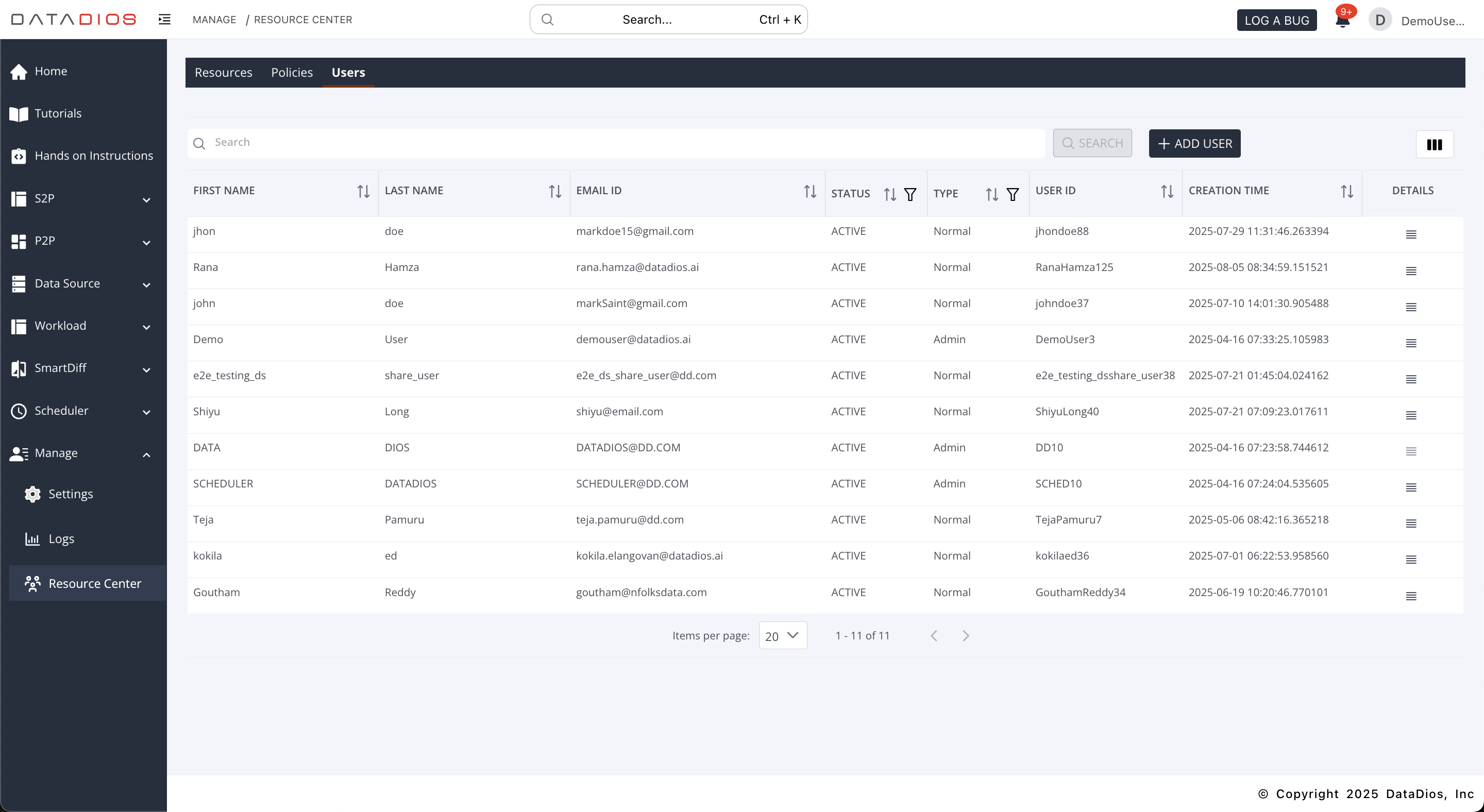
Admin Capabilities:
- View Users: Complete list of all registered users with detailed information
- Add Users: Create new user accounts with full configuration options
- Update Users: Modify existing user accounts — name, role, status, and (for default-tenant admins) the sign-in email address
- Delete Users: Remove user accounts from the system
- Search Users: Find specific users using search functionality
- Status Management: Monitor and control user account status
Changing a User's Email Address
Accounts created before DataDios validated email addresses can be left holding an address that no longer works — or was never a real mailbox. Anything that reaches the person through their address (email verification, password reset, a two-step authentication code) then has nowhere to go, and the account becomes unusable. An admin can correct the address in place to bring the account back.
Who can do it. Only an admin of the default tenant. Admins of other tenants do not see the option, and the server refuses the request if it is made another way.
How. Open Manage → Users, find the user, and choose Change email on their row. Enter the corrected address and save.
What it does — and does not — do:
- It changes the address the person signs in with, immediately. Their old address stops working at the next sign-in; any session they already have stays valid until it expires.
- It does not notify them. Tell them their new sign-in address yourself.
- It does not change their password, their role, or anything they own.
When the change is refused. The address is the account's identity, so DataDios declines a change that would break something. You will see the reason on screen:
| Reason | What it means |
|---|---|
| The address is already in use | Another account anywhere in the installation already has it. Two accounts cannot share an address, because sign-in could not tell them apart. |
| Not a valid email address | The value is not a well-formed address. |
| Reserved system account | Built-in DataDios service accounts cannot be renamed. |
| Managed by your identity provider | The account signs in through SSO (Microsoft or Google), where the address comes from the provider, not from DataDios. Change it there. |
| Grants privileged access | The address carries cross-installation administrator rights. It is changed through configuration, not by renaming an account. |
User Information Displayed:
- First Name: User's first name
- Last Name: User's last name
- Email Id: User's email address
- Status: Account status (ACTIVE/INACTIVE)
- Type: User type (Admin/Normal)
- User ID: Unique user identifier
- Creation Time: When the account was created
- Details: Additional user information
User Management Actions:
View User Details
- Complete Profile: Access full user profile information
- Account History: View user activity and creation details
- Permission Overview: See current user permissions and access levels
- Status Information: Check account status and last login details
Add New User
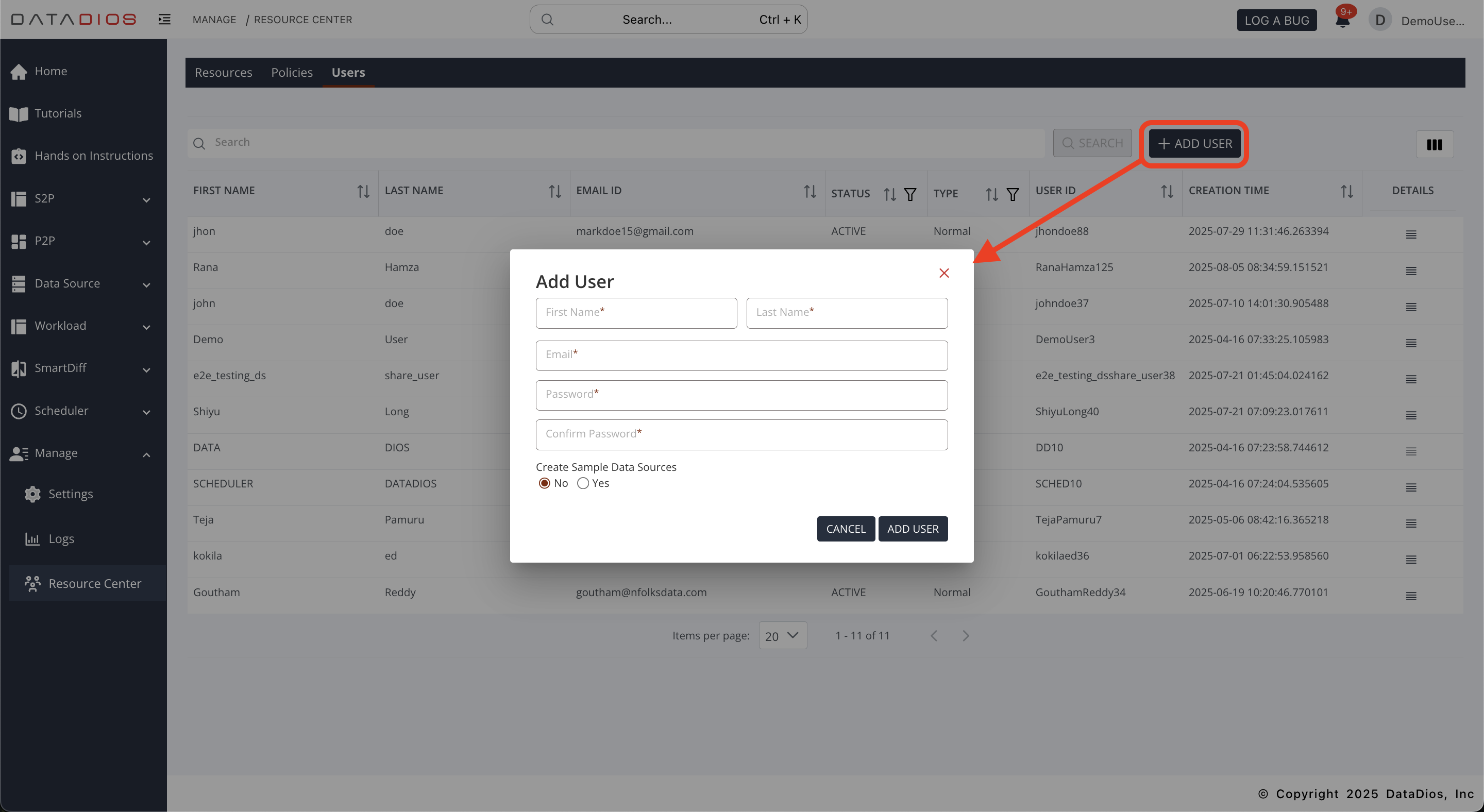
- Add User Button: Click on "ADD USER" button, it will open a form
- User Creation Form: Complete form for new user registration
- Required Fields: First name, last name, email, password. First and last names can't contain digits.
- User Type Selection: Choose between Admin and Normal user types
- Initial Permissions: Set up initial access permissions
- Account Configuration: Configure user-specific settings
Update User Information
Administrators can modify the following user fields:
User Type Management
- Admin: Full system access and administrative privileges
- Normal: Standard user access with limited permissions
- Type Switching: Change user type between Admin and Normal
- Last Admin: An organization always keeps at least one active admin, so changing its last admin to Normal, or disabling them, is refused
- Privileged Accounts: The type of a
Privilegedaccount can't be changed here - Permission Updates: Automatically adjust permissions based on user type
- Password Reset: Reset user passwords when needed
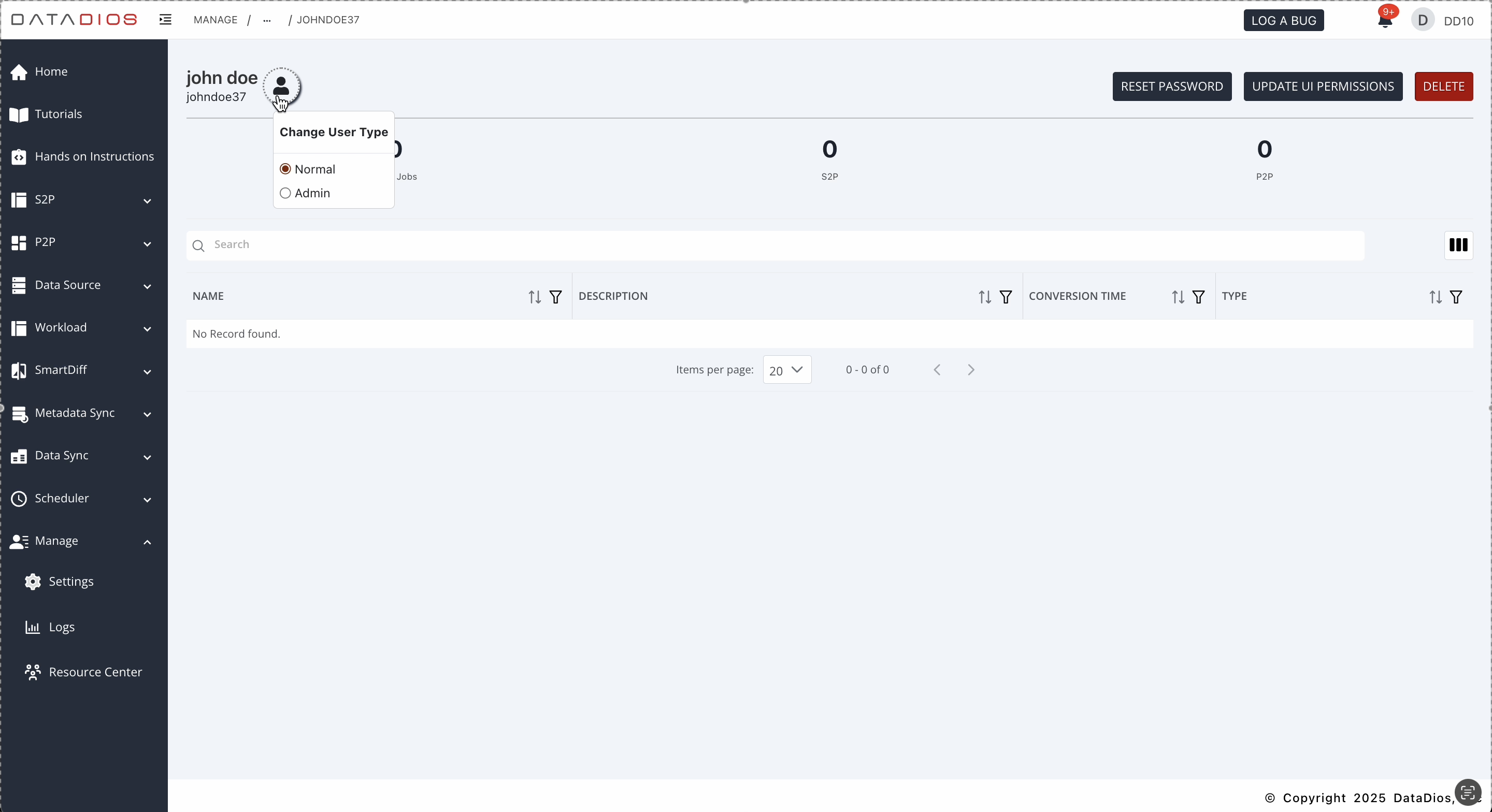
UI Access Permissions
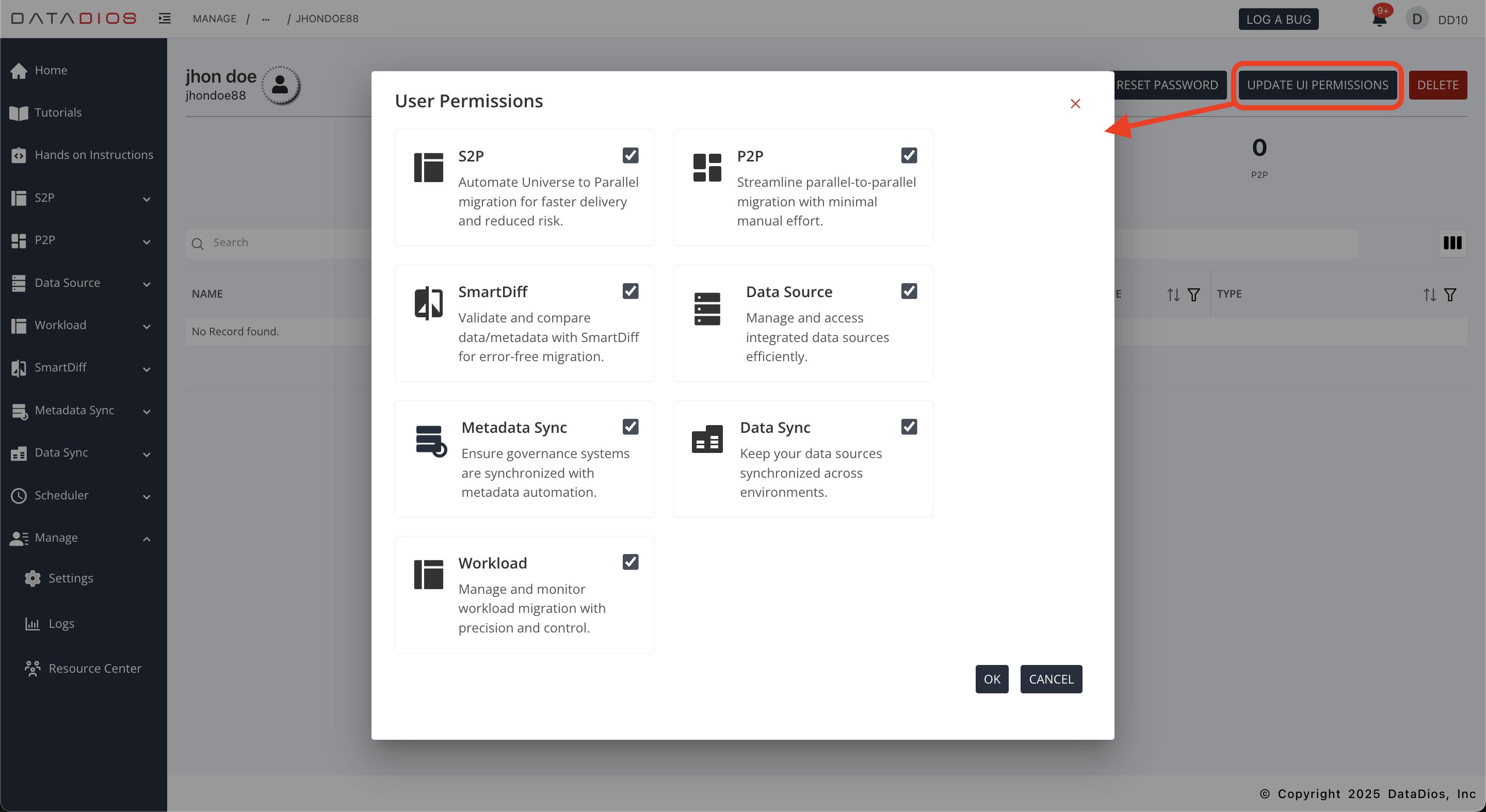
- Update UI Access Button: Click on "UPDATE UI PERMISSIONS" button, it will open a form
- Module Access: Control access to specific modules
- Feature Permissions: Enable/disable specific features for users
- Navigation Rights: Control which sections users can access
- Resource Access: Manage access to specific resources and data sources
Delete User Accounts
- Account Removal: Permanently delete user accounts
- Data Cleanup: The user's own data is removed along with the account
- Permission Revocation: The user's shares and the grants they held are removed
Deleting a user is permanent and cannot be undone. Because the deleted user's own data is removed with their account, everything shared from that account is removed too — and that is visible to the people it was shared with. Recipients get no notification: the shared entry simply stops appearing in their list, which is the part support usually hears about first.
- Resources the deleted user owned disappear from every recipient's shared list. This includes resources they had shared with all users.
- Grants the deleted user had received are revoked for that user only. If a resource was shared with several people, everyone else keeps their access — only the deleted user's entry goes.
- Admins can only delete users in their own tenant. A user id belonging to another tenant is reported as not found.
- You cannot delete your own account, and you cannot delete the last remaining admin of a tenant. Both are refused.
If the resources a departing user owns need to stay available, have them re-share those resources from an account that will remain, or transfer ownership, before deleting the account.
Users deleted in versions before v1.9.0 may have left stale entries in other users' shared lists. Those pre-existing entries are not cleaned up retroactively.
User Management Interface Features:
Search and Filtering
- Global Search: Search across all user fields
- Advanced Filters: Filter by user type, status, creation date
- Column Sorting: Sort users by any displayed column
- Pagination: Navigate through large user lists efficiently
Conclusion
The Resource Center provides the available tools for managing shared resources and users. It offers centralized control over platform access and permissions, with search, filtering, and management capabilities.
For additional support or questions about specific features, consult the DataDios documentation or contact your system administrator.