Amazon Web Services (AWS)
This section explains how to create and test a AWS datasource in DataDios.
Steps to Create and Test AWS Datasource
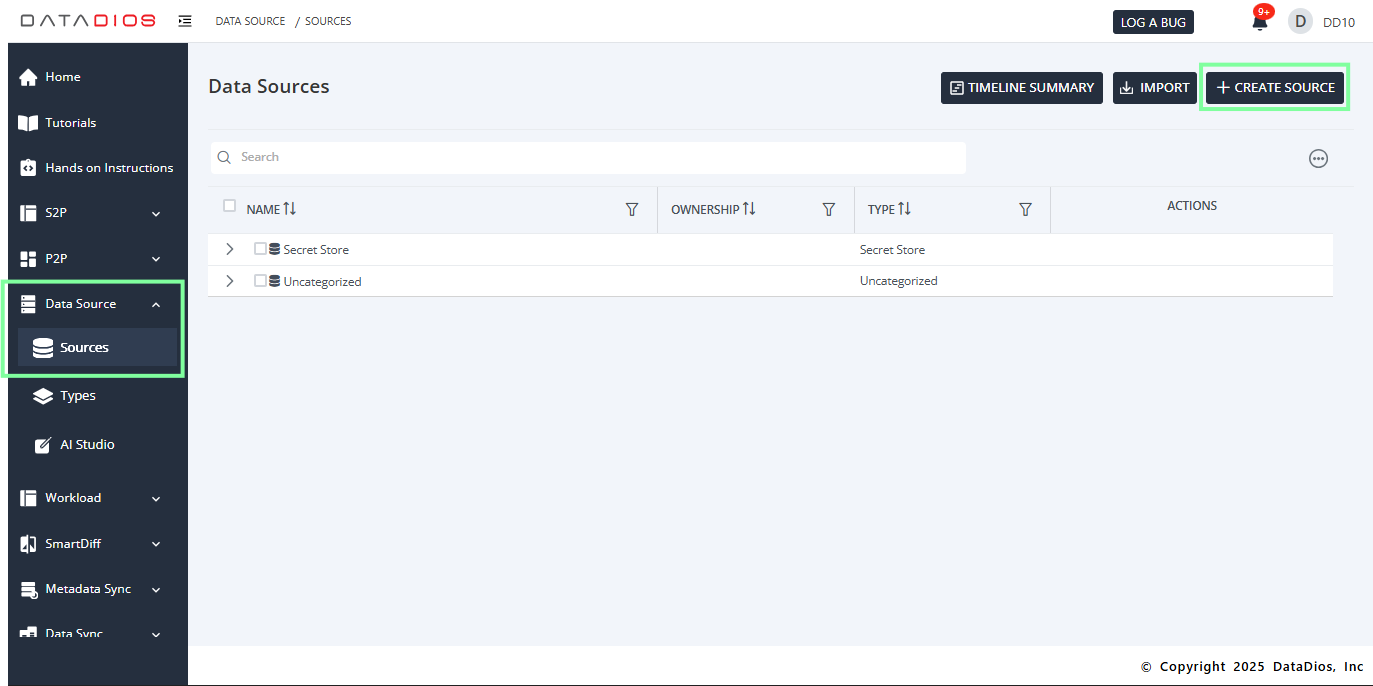
- Navigate to the DataSources tab in DataDios and click on Create DS.
- From the datasource type list, select AWS_service.
- Fill in the Connection Details in the credentials form:
- Name: Desired name of the datasource. (Mandatory)
- aws_access_key_id: AWS access keys id. (Mandatory)
- aws_secret_access_key: AWS secret access key. (Mandatory)
- region_name: Region of the aws resources (ex: us-west-2). (Mandatory)
- Schedule Sync: Required for metadata timeline synchronization. More details are available in the Metadata Timeline documentation.
- Secret Name: Optional, if your database password is stored in a key store such as AWS secret manager or Azure key vault.
- After entering the details, click on Test Connection to validate.
- If the test is successful, click Create to save the datasource.
- you will be redirected to the Datasource Listing Page, where your AWS datasource will appear.
- Explore the datasource items hierarchically.
- This will list all resources in AWS, including EC2, S3 BUCKETS, RDS etc.
- Note that the resources will be listed region wise.
- Along with resources, it will also list the cost details of the resources of current billing cycle under Cost Center.
View Metadata about Datasource Items
- Click on any item listed in the datasource and then click the three stacked lines icon.
- This will open a pop-up window showing the metadata for the selected datasource item.
Turning on/off AWS Services using DataDios
- You can turn on/off any AWS service using DataDios. Please ensure that you cling on Refresh Row Data icon to get the latest status of the service before performing this operation.

- Click on the Power icon next to the three stacked lines button of the service name. Note that this will only work for services that support start/stop functionality, such as EC2 instances.

- This will turn on/off the selected AWS service.