Datasources & Operations
This document explains how to create, update, test, clone, and delete datasources in DataDios.
Quick Start
Key Actions You Can Perform
- Create a New Datasource
- Test the Connection and Save the Datasource
- Update Datasource Details
- Clone a Datasource
- Delete a Datasource
- Import Datasource from JSON
- Refresh the Object List
Datasource Creation and Connection Parameters Validation
-
Navigate to Data Explorer from the left navigation menu. The Data Management page lists all your existing connections, along with header metrics for Active Sources, Avg Quality, Drifting, and Monthly Cost.
-
Click + Add connection in the top-right corner.
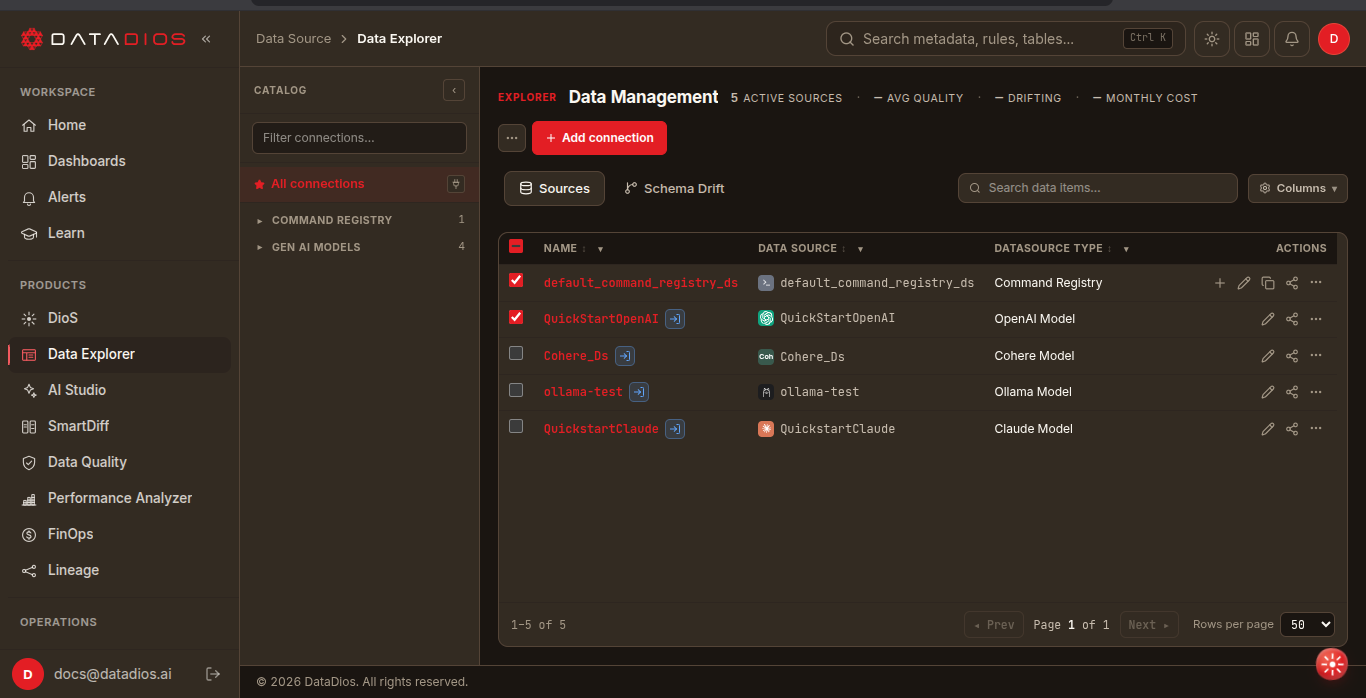
-
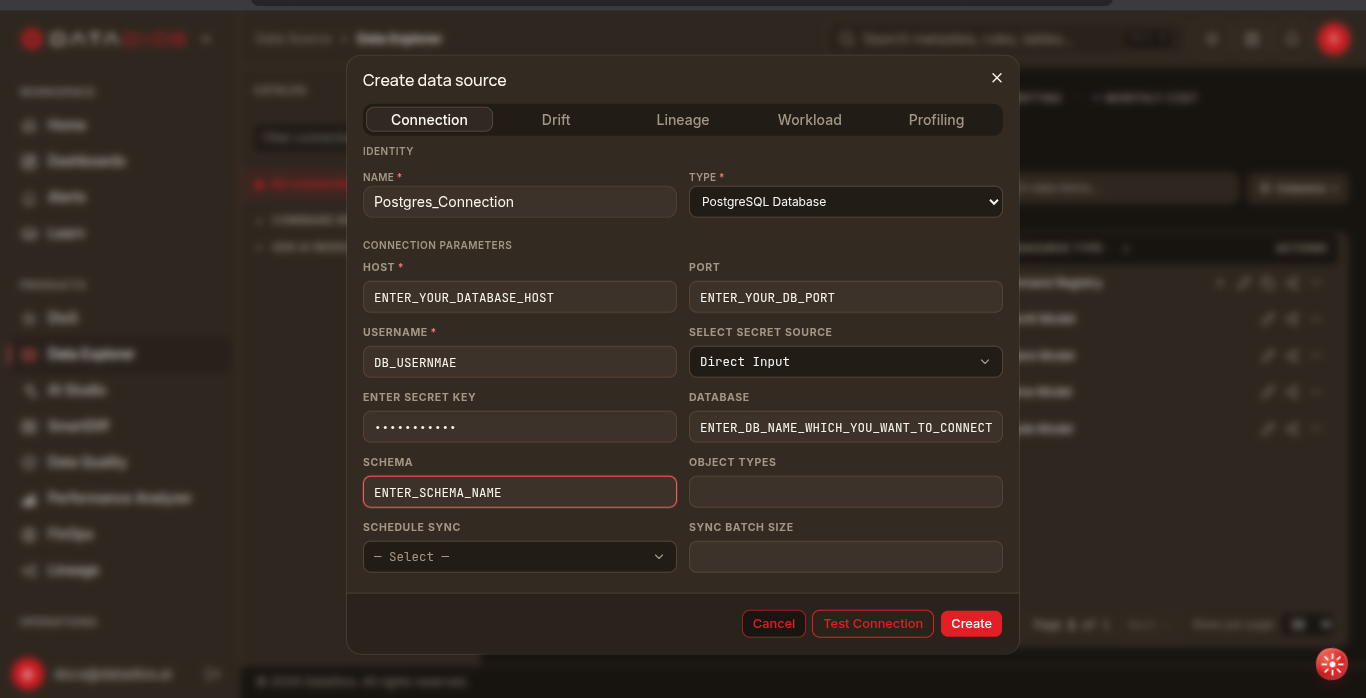
The Create data source dialog opens on the Connection tab. Additional tabs let you configure optional capabilities for the same connection: Drift, plus Workload and Profiling where the source type supports them. Lineage is not set up here. A data source gets lineage by being added to a workspace on the Lineage page, and the build starts on its own once it is a member.
-
Under IDENTITY, enter a Name for the datasource and choose its Type (for example, PostgreSQL Database).
-
Under CONNECTION PARAMETERS, fill in the credentials for your database:
- Host and Port — the address of your database server
- Username — the account used to connect
- Select Secret Source — choose Direct Input to type the secret here, or select a configured secret store
- Enter Secret Key — the password or secret for the account
- Database — the database you want to connect to
- Schema — the schema to read from
- Object Types — optionally restrict to specific object types, such as
tables,views - Schedule Sync and Sync Batch Size — optionally control how often metadata is synchronised and how much is fetched per batch
 note
noteThe tab strip in this screenshot predates 2026-09-09 and still shows a Lineage tab. That tab was removed; the tabs listed above are what the dialog renders today. Recapture is tracked in dd-docs#208.
-
Click Test Connection to validate the credentials before saving.
-
Once validation succeeds, click Create. The new datasource appears in the Sources list on the Data Management page.
Update Datasource Details
-
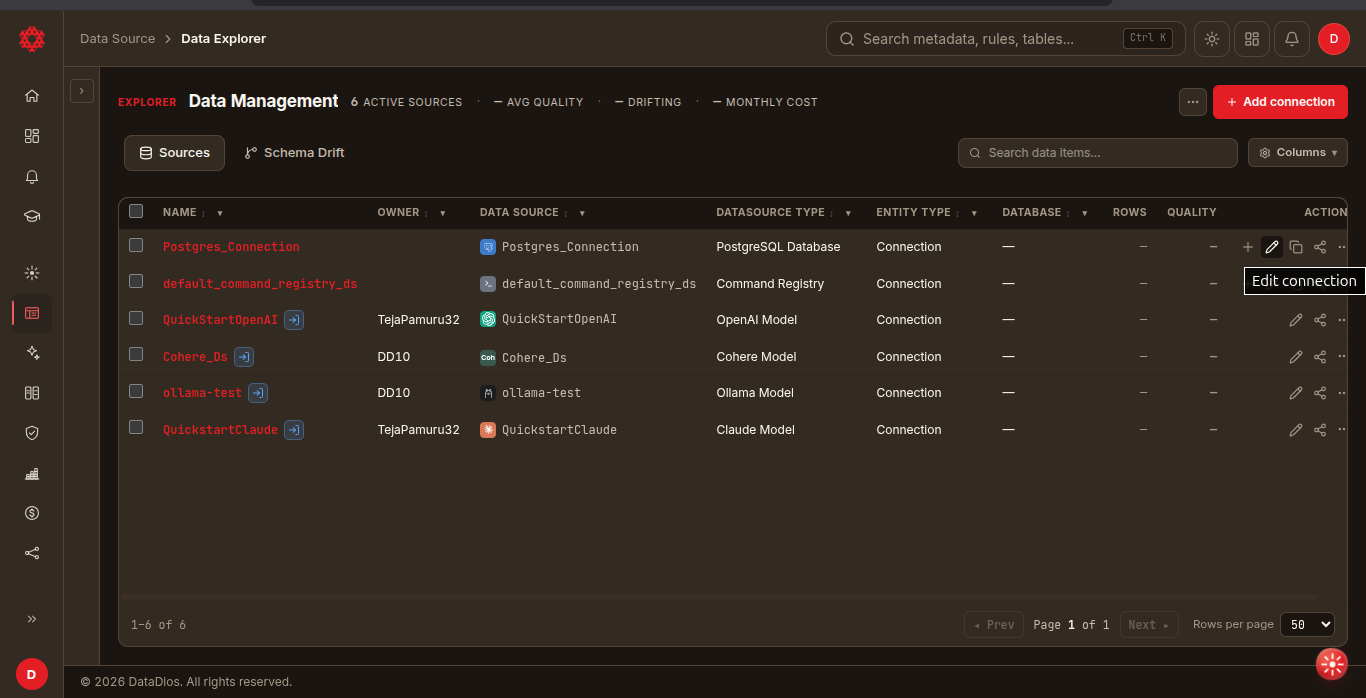
On the Data Management page, locate your datasource in the Sources list.
-
In the Actions column at the end of the row, click the pencil icon (Edit connection).
-
The Edit data source dialog opens on the Connection tab, pre-filled with the current configuration. Alongside Drift, Workload and Profiling, two further tabs appear only when editing an existing source: RAG settings (see RAG Settings) and Import object. Both depend on the source type declaring the capability.
-
Update the connection details (credentials, parameters, etc.) as needed. The Name and Type identify the source and cannot be changed here.
-
Click Test Connection to validate your changes, then click Save.
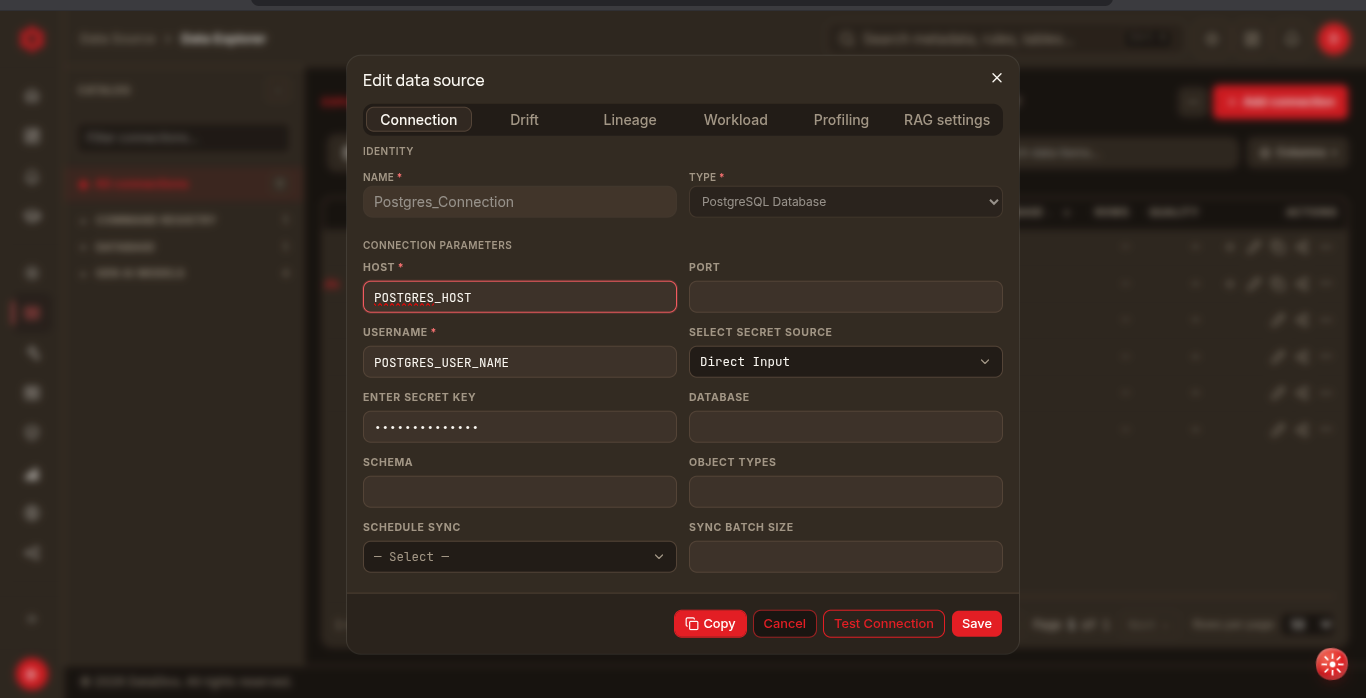
The tab strip in this screenshot predates 2026-09-09 and still shows a Lineage tab. That tab was removed; the tabs listed above are what the dialog renders today. Recapture is tracked in dd-docs#208.
The dialog footer also provides Copy, which duplicates the source — see Clone a Datasource.
Import Datasource
Importing is simply datasource creation from a file, for when you already know the credentials are correct.
-
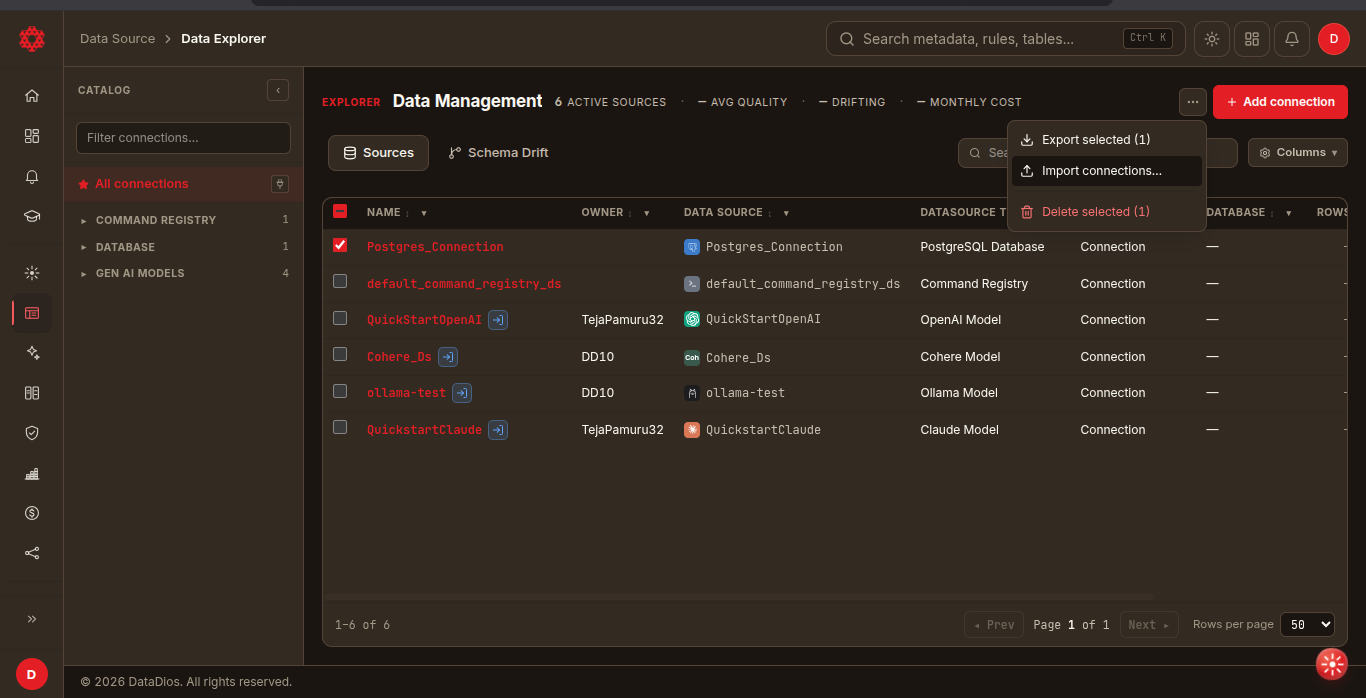
Click the ... menu at the top-right of the Data Management page and choose Import connections....
-
Select a JSON file that follows the structure shown below. DataDios reads the file and creates the datasources directly — you can import multiple datasources at the same time.
-
After import, validate a datasource by opening Edit connection and clicking Test Connection.
The same menu also offers Export selected, which writes the connections you have ticked out to a file — useful for copying connections between environments.
JSON Structure
[
    {
       "Name": "Datasource_Name",
       "Type": "SQLServer Database",
       "Connection Parameters": [
             {
                "host": "host-address",
                "port": "1433",
                "username": "db-username",
                "password": "db-password",
                "database": "db-to-connect",
                "schema": "schema-to-connect",
                "object_types": "tables,views"
             }
       ]
    }
 ]
Clone a Datasource
-
On the Data Management page, locate your datasource in the Sources list.
-
Click the pencil icon (Edit connection) in the Actions column to open the Edit data source dialog.
-
Click Copy in the bottom-left of the dialog footer.
noteThe tab strip in this screenshot predates 2026-09-09 and still shows a Lineage tab, which has since been removed. It does not affect the Copy button this step points at. Recapture is tracked in dd-docs#208.
-
Cloning follows the same process as datasource creation and creates a copy you can adjust.
-
Give the copy a new Name, update any credentials and connection parameters that must differ, then click Test Connection and Save.
Ensure you update credentials and connection parameters correctly to avoid conflicts with the original source.
Delete a Datasource
-
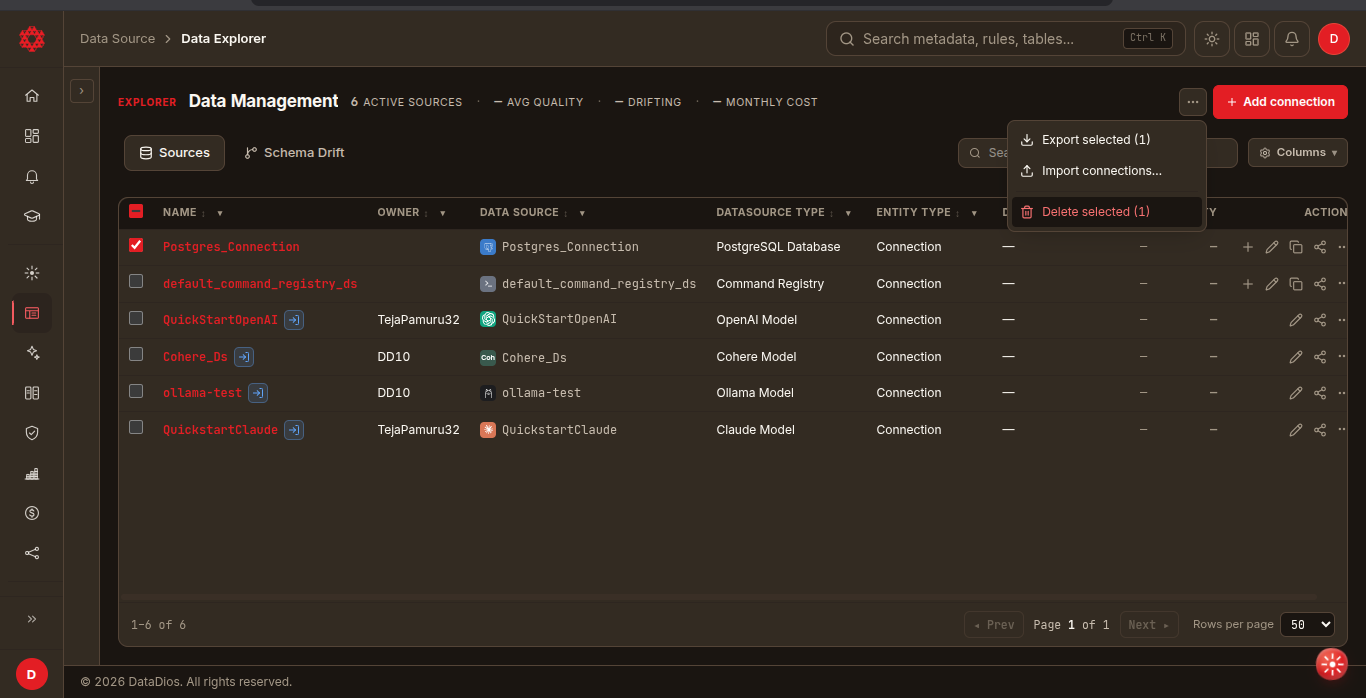
On the Data Management page, tick the checkbox next to the datasource you want to remove. The ... menu at the top-right updates to show how many rows are selected.
-
Open the ... menu and choose Delete selected.
-
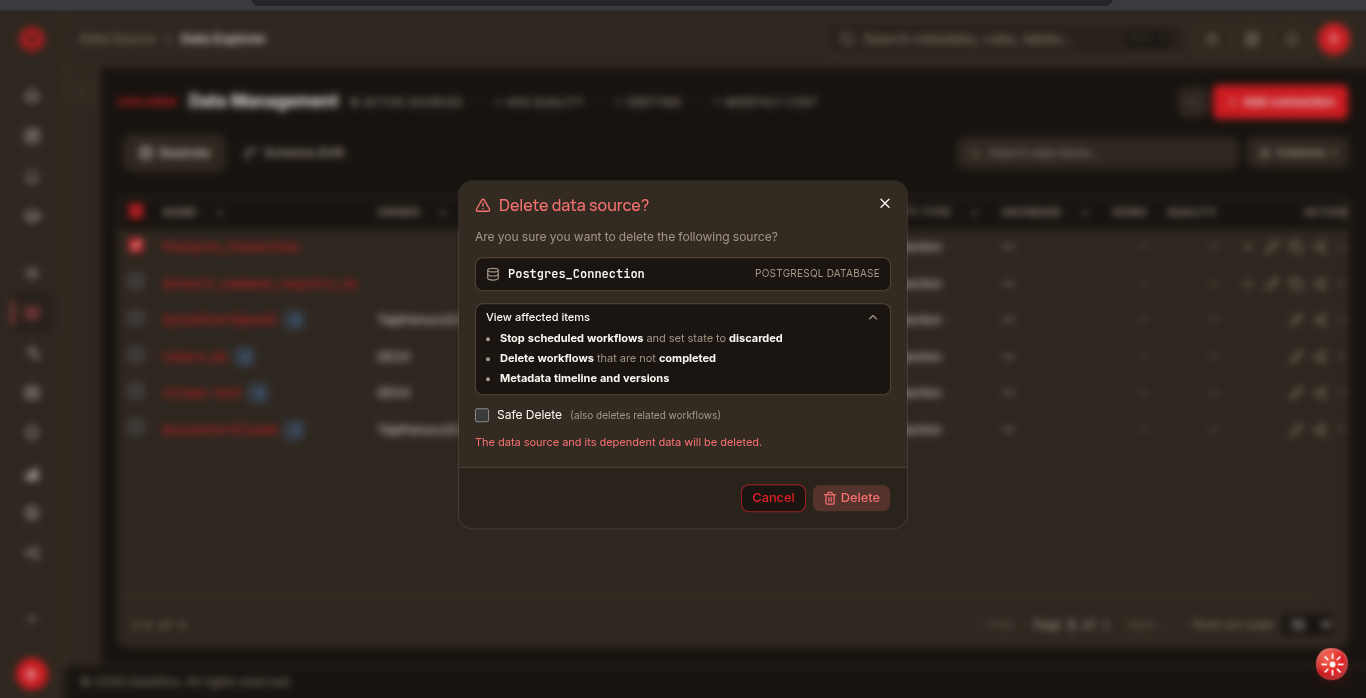
The Delete data source? dialog opens, naming the source and its type so you can confirm you picked the right one.
-
Expand View affected items to see exactly what the deletion will touch:
- Stop scheduled workflows and set their state to discarded
- Delete workflows that are not completed
- Metadata timeline and versions
-
Optionally tick Safe Delete, which also deletes the related workflows.
-
Click Delete to confirm.
If RAG is enabled for the data source, deleting it also deletes its knowledge base: RAG is turned off, its auto-sync schedule stops, and its embedded documents are removed. Registering a data source under the same name later starts a new, empty knowledge base.
The data source and its dependent data will be deleted. Review the affected items before confirming.
Explore Datasources
On the Data Management page, open a datasource from the Sources list once it finishes syncing to browse its objects — databases, schemas, tables, views, and files — as a tree you can drill into. Open a table or view to see its columns on the Object Meta Data tab.
To find a specific object, use the search box above the object list:
- It appears as soon as you open the datasource and stays available as you drill down through databases and schemas — but not once you open an object itself, or on the datasource's other tabs (like Schema Drift).
- The search covers the whole datasource, not just the level you are currently viewing, so an object nested several levels deep still turns up in the results.
- Each result shows the object that contains it — for a table, the database and schema joined by a colon (for example
quickstart:public). - Column filters and sorting are turned off while a search term is active. Clear the box to bring them back — except on a level with more than 50 objects, where they stay off either way.
- Selecting a result opens that object directly and clears the search box, so type the term again if you want to see the rest of the matches. Because a result is reached by search rather than by walking the tree, the breadcrumb shows datasource › object — use it to jump back to the datasource, then drill in normally if you need the levels in between.
- A search-hit link only works for the session that opened it, so it is not shareable — reloading the page or opening a copied link to a search result shows an error instead of the object.
Refreshing the Object List
The object list can fall behind the actual database as tables, schemas, or files change. Click Refresh above the object list to start a background job that re-reads the datasource's objects and rebuilds the list.
- While the job is running, the button label shows Loading… X% · Y ago — X% is the job's reported progress, and "Y ago" is how long since the job last reported that progress (not since it started).
- Hovering the button while a refresh is running shows Refresh list items (last reported Y ago). Once the refresh completes, it shows Refresh list items (last refreshed Y ago) — the time since the job finished.
- If the job makes no progress for about a minute before reaching 10%, DataDios assumes the source may be offline, stops polling, and prompts you to refresh again.
- Past 10% there is no automatic timeout — a job stuck partway through and a healthy slow one look the same in the UI. A "· Y ago" value that keeps growing while the percentage stays put is the only sign the refresh may not be progressing.
For detailed steps on creating and testing specific datasources, check out the following: