Ollama Model
This section explains how to create, configure, and test an Ollama Model data source in DataDios. Ollama is an open-source tool that allows you to run large language models (LLMs) locally. By configuring Ollama as a data source, you can integrate local AI models into your DataDios workflows.
Prerequisites
Before configuring an Ollama data source, ensure:
- Ollama is installed and running on your local machine or a server accessible from DataDios
- At least one model is pulled (e.g.,
ollama pull mistral:7b-instruct-q4_0) - The Ollama API is accessible via the configured host and port. Ollama's own default is host
http://localhostwith port11434— the new UI takes these as two separate fields.
Steps to Create and Test an Ollama Data Source
Step 1: Navigate to Data Sources
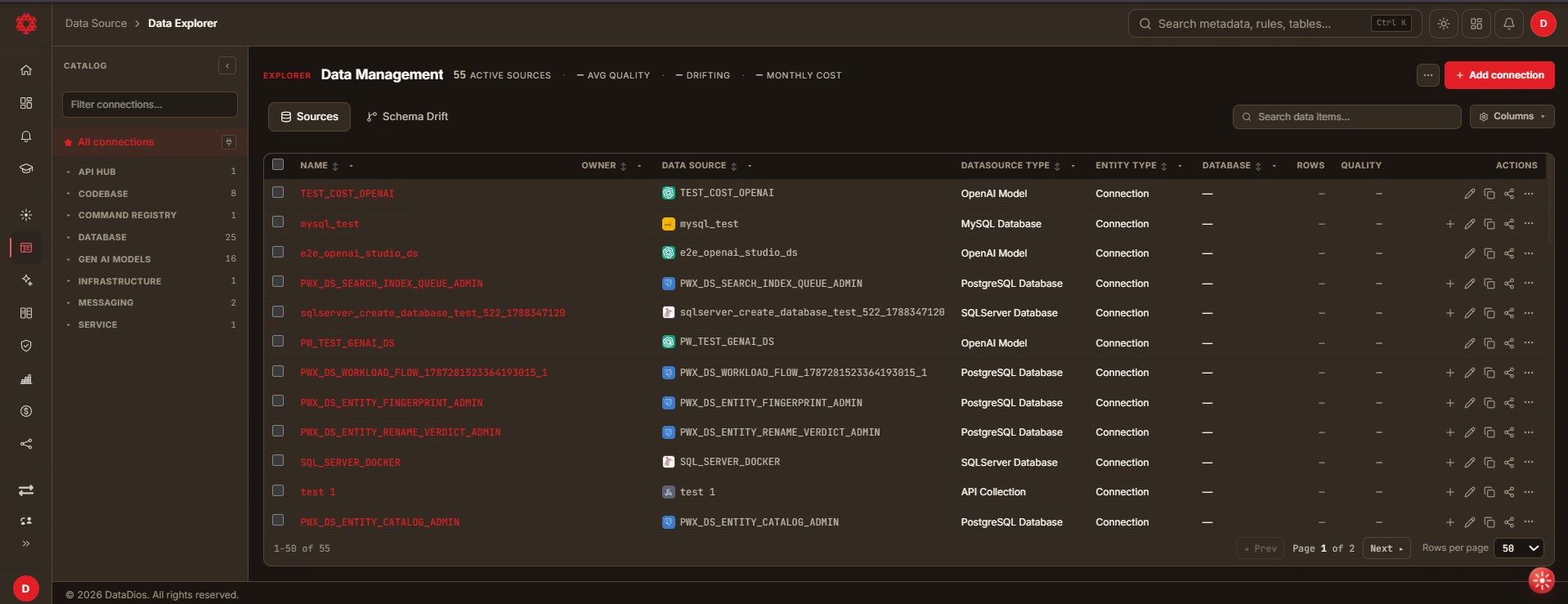
- Navigate to Data Explorer from the left navigation menu.
- The Data Management page lists every connection. The left Catalog panel groups them by category — existing Ollama connections live under Gen AI Models.
Step 2: Create a Data Source
- Click + Add connection in the top-right corner. The Create data source dialog opens.
- Under Identity, enter a Name for the connection (e.g.,
QuickStartOllama). - Select Ollama Model from the searchable Type dropdown — it is listed under the Gen AI Models group.
Step 3: Fill Connection Details
Under Identity, provide:
- Name: a unique name for your Ollama data source (e.g.,
QuickStartOllama) (required)
In the Connection Parameters section, provide:
- Project Name: project identifier used to organize your models (e.g.,
ollam_local) - Model Name: the chat model to use, picked from the built-in catalog (required — see Available Ollama models)
- Embedding Model: the embedding model for vector and RAG operations — mxbai-embed-large, nomic-embed-text or all-minilm
- Host: the Ollama server URL, including the scheme and without the port (e.g.,
http://localhostorhttp://<server-ip>) (required) - Port: the port the Ollama API is served on — the field is prefilled with
8080, so change it to your Ollama port (Ollama's own default is11434) (required)
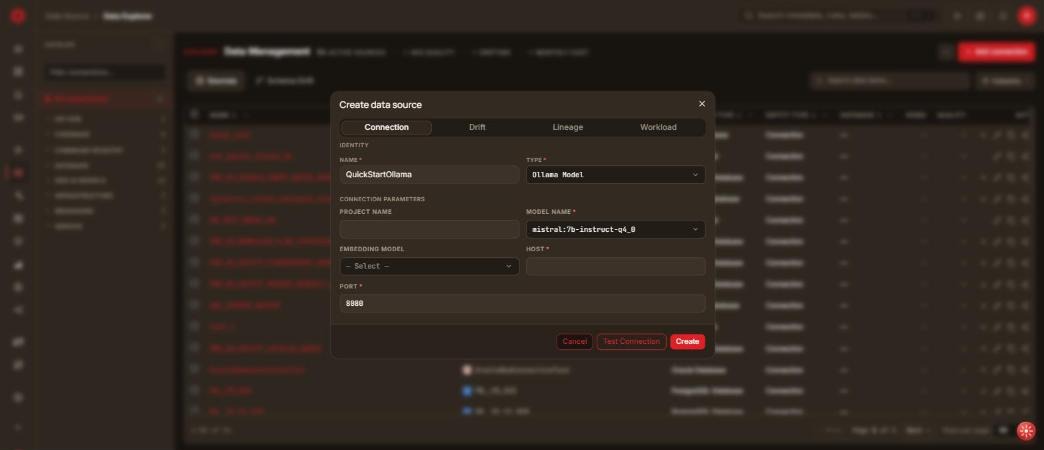
The dialog also carries Drift, Lineage and Workload tabs. These are optional and can be turned on later from Edit:
- Workload — toggle Enable workload analysis (and optionally Enable insight extraction), then select the LLM Usage Workload workflow to collect model usage statistics.
- Drift and Lineage behave as they do for other connection types.
Ollama has no Profiling tab.
Step 4: Test Connection
Click Test Connection to confirm DataDios can reach the Ollama API and load the selected model.
If the test fails, verify:
- The Ollama service is running (
ollama serve) - The Host and Port are correct and reachable from the DataDios server
- The selected model has been pulled on that server (
ollama list)
Step 5: Save Data Source
If the test succeeds, click Create. You land back on the Sources list, and the new connection appears under the Gen AI Models category in the left Catalog panel.
Step 6: Update Data Source (Optional)
To modify an existing Ollama data source:
- Click the Edit connection (pencil) icon in the Actions column of its row. The Edit data source dialog opens with the current values.
- Update the connection parameters as needed.
- Click Test Connection to verify the updated configuration.
- Click Save to apply the changes.
Available Ollama Models
Model Name is a picker, not a free-text field. The catalog it offers is:
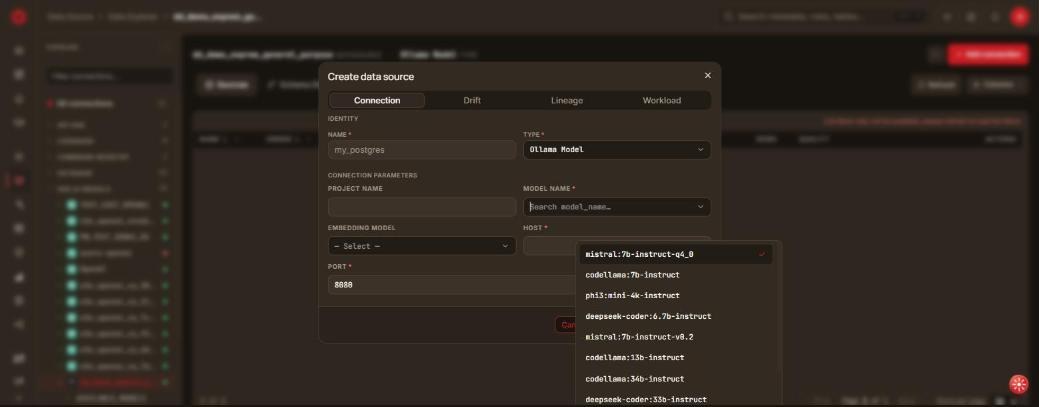
| Model | Use case |
|---|---|
mistral:7b-instruct-q4_0 | General purpose chat — the default selection |
mistral:7b-instruct-v0.2 | Newer Mistral instruction-tuned build |
llama3:8b-instruct | General purpose reasoning and chat |
mixtral:8x7b-instruct | Mixture-of-experts model for harder reasoning |
gemma:2b-instruct | Small general purpose model |
phi3:mini-4k-instruct | Small model with a 4k context window |
tinyllama:1.1b | Smallest option, for constrained hardware |
codellama:7b-instruct | Code generation |
codellama:13b-instruct | Code generation, larger |
codellama:34b-instruct | Code generation, largest |
deepseek-coder:6.7b-instruct | Code generation and analysis |
deepseek-coder:33b-instruct | Code generation and analysis, larger |
wizardcoder:13b-python | Python-specialised code generation |
Embedding Model offers:
| Model | Description |
|---|---|
mxbai-embed-large | High-quality text embeddings |
nomic-embed-text | Fast, efficient embeddings |
all-minilm | Compact embeddings for constrained hardware |
Whichever model you pick must already be pulled on the Ollama server (ollama pull <model>), otherwise Test Connection fails.
Using Ollama with AI Studio
Once configured, you can use your Ollama data source in AI Studio for:
- Natural language queries on your data
- Text generation and completion
- Document analysis and summarization
- Code generation assistance
For detailed information, refer to the AI Studio documentation.
Best Practices
- Use Local Network for better performance when running Ollama on a local server
- Choose Appropriate Models based on your hardware capabilities —
tinyllama:1.1borgemma:2b-instructfor limited resources,mixtral:8x7b-instructonly where there is memory for it - Pull the model first — the catalog lists what DataDios can select, not what your server already has
- Test Connection before saving to ensure the Ollama server is accessible
- Monitor Resource Usage as LLMs can be memory-intensive
- Keep Models Updated by periodically pulling the latest versions (
ollama pull <model>)
Troubleshooting
| Issue | Solution |
|---|---|
| Connection refused | Ensure Ollama is running with ollama serve |
| Model not found | Pull the model first: ollama pull <model_name> |
| Timeout errors | Check network connectivity and firewall settings |
| Out of memory | Use a smaller quantized model or increase system RAM |