Trino Engine
This section explains how to create, configure, and test a Trino Engine data source in DataDios.
Steps to Create and Test a Trino Data Source
Step 1: Create a Data Source
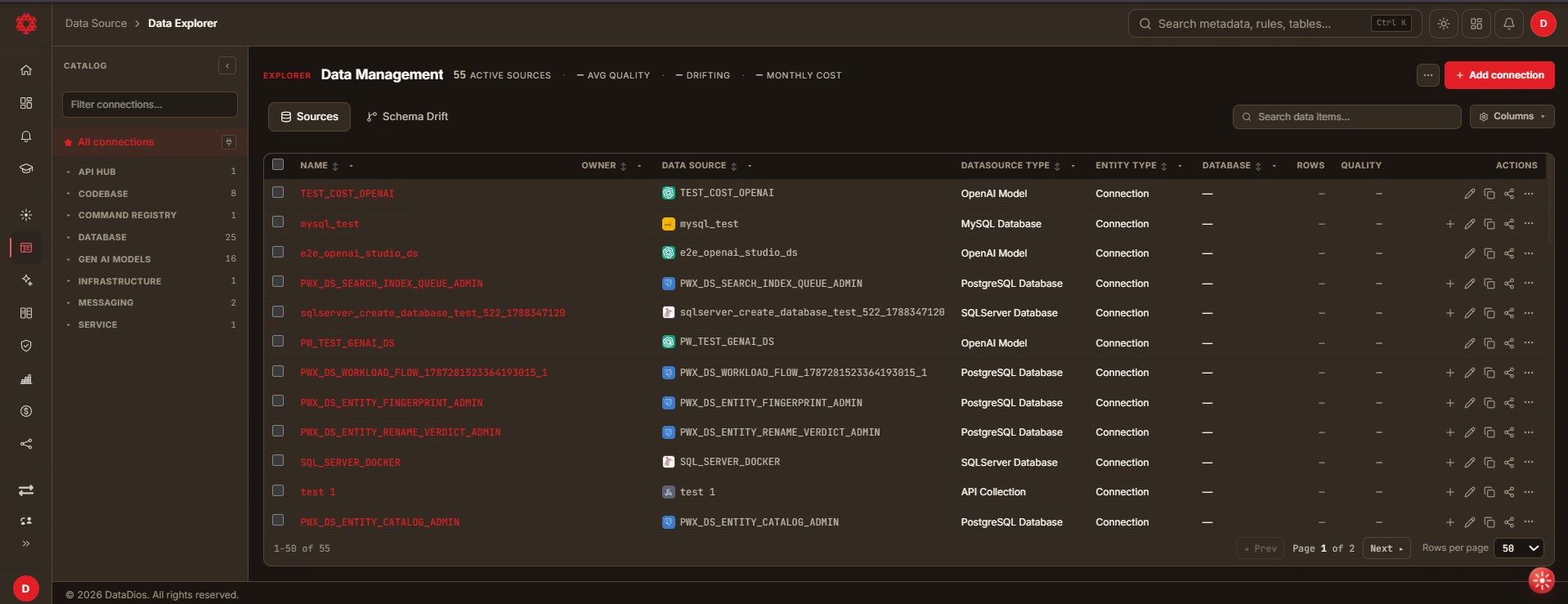
- Navigate to Data Explorer from the left navigation menu.
- Click + Add connection in the top-right corner. The Create data source dialog opens.
- Under Identity, enter a Name for the connection and select Trino Engine from the searchable Type dropdown.
Step 2: Fill Connection Details
In the Connection Parameters section, provide:
- Host: Trino host or IP address (required)
- Port: Trino port (default:
8080) - User: Trino login username (required)
- Catalog: catalog to connect to (comma-separated if multiple)
- Schema: target schema (leave blank to use the default schema)
- Is JMX Enabled: Yes if JMX monitoring is enabled on the Trino server and should be used for workload extraction, otherwise No
- JMX Port: JMX port number (default:
9010)
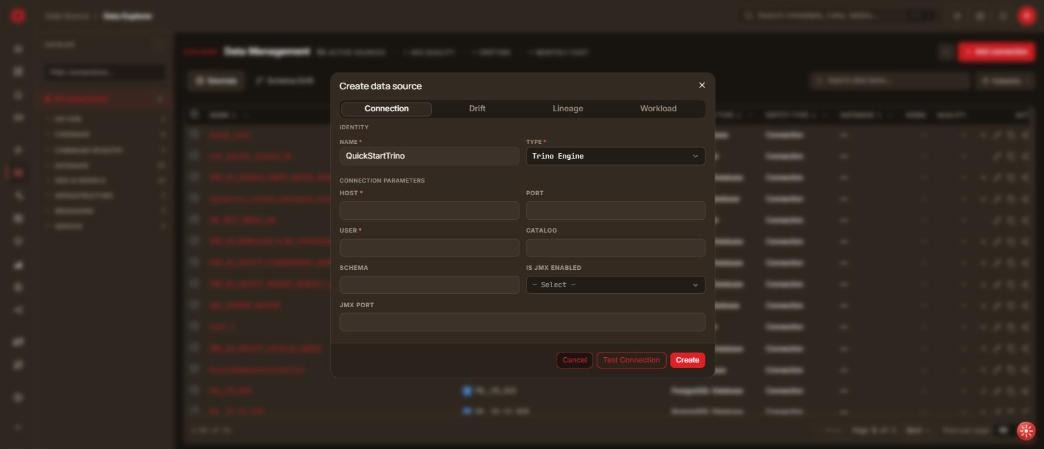
The dialog also carries Drift, Lineage and Workload tabs. These are optional and can be turned on later from Edit:
- Drift — toggle Enable drift tracking to record schema changes (new columns, type changes, dropped tables) in the drift timeline.
- Lineage — toggle Build lineage after creating to trace data flow across pipelines and jobs.
- Workload — toggle Enable workload analysis (and optionally Enable insight extraction), then pick from the Trino workflows: TR Query Workload and TR JMX WORKLOAD. Select TR JMX WORKLOAD only when Is JMX Enabled is set to Yes and the JMX port is reachable.
Trino has no Profiling tab.
Step 3: Test Connection
Click Test Connection to validate the host, port and user before saving.
Step 4: Save Data Source
If the test succeeds, click Create. You land back on the Sources list, and the new Trino connection appears under the Service category in the left Catalog panel.
To change it later, click the Edit connection (pencil) icon on its row and save with Save instead of Create.
Step 5: Explore Data Source Items
Click the connection's name to drill down into it. Every level of the hierarchy opens a Sources listing of the objects beneath it, alongside the Lineage, Schema Drift and Data Quality tabs. Opening a table lands on its Metadata tab, with Data Preview, Profile, Quality Rules, Lineage and History beside it — the same explorer shell used by every other connection type (see PostgreSQL for a worked example of the drill-down).
You can also use these related features on a Trino object:
- Data Quality — define and monitor quality rules for the selected object. See the Data Quality documentation.
- Schema Drift — review changes to the object over time. See the Metadata Timeline.
- AI Studio — query the data in natural language. See the AI Studio documentation.
Best Practices
- Always Test Connection before saving to ensure the configuration is correct
- Scope the Catalog list to the catalogs you actually need — a bare Trino connection can front many underlying systems
- Only enable TR JMX WORKLOAD when JMX is genuinely exposed on the Trino coordinator
- Enable only what you need — Drift, Lineage and Workload are optional and can be turned on later from Edit