S3 Bucket
This section explains how to create and test an AWS S3 Bucket as a data source in DataDios.
Steps to Create and Test an S3 Bucket Data Source
Step 1: Create a Data Source
-
Navigate to the DataSources tab in DataDios
-
Click + CREATE DS
-
From the list of available data source types, select S3 Bucket

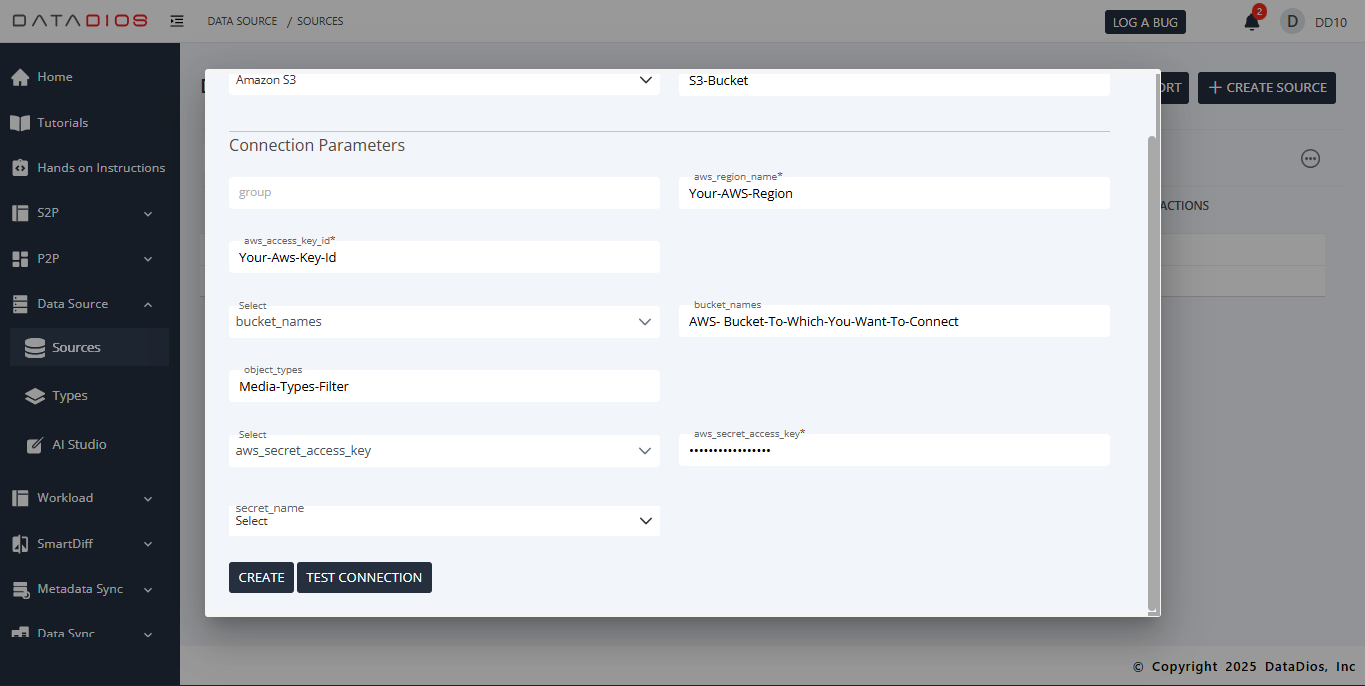
Step 2: Fill Connection Details
In the Connection Details form, provide the required parameters:
- Group: Optional grouping for data sources
- AWS Region Name: Your AWS region (e.g.,
us-east-1) - AWS Access Key ID: Access key for authentication
- AWS Secret Access Key: Secret key for authentication
- Bucket Names: The S3 bucket(s) you want to connect to
- Object Types: Media/file type filters (e.g.,
images,csv,json) - Secret Name: Optional, if your AWS credentials are stored in a key store such as AWS Secrets Manager or Azure Key Vault
- JSON Structure
    {"group":"",
    "aws_region_name":"us-east-2",
    "aws_access_key_id":"your-aws-secret-key-id",
    "bucket_names":"your-bucket-name",
    "object_types":"",
    "aws_secret_access_key":"your-aws-secret-key"}
Step 3: Test Connection
- After entering the details, click Test Connection
- If the connection details are correct, the test will return Status: OK
Step 4: Save Data Source
-
If the test is successful, click Create to save the data source
-
You will be redirected to the Datasource Listing Page, where your S3 Bucket data source will appear
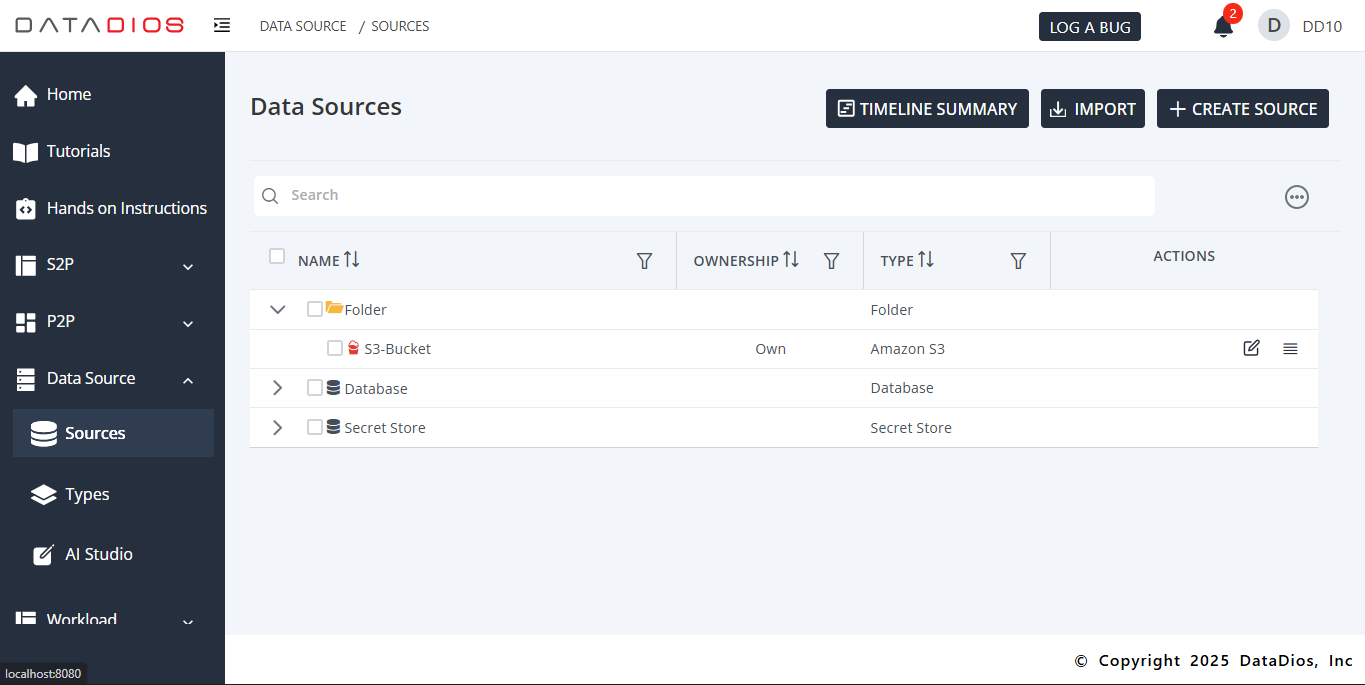
Step 5: Explore Data Source Items
-
Expand the S3 data source to view all items, including folders, files, and media
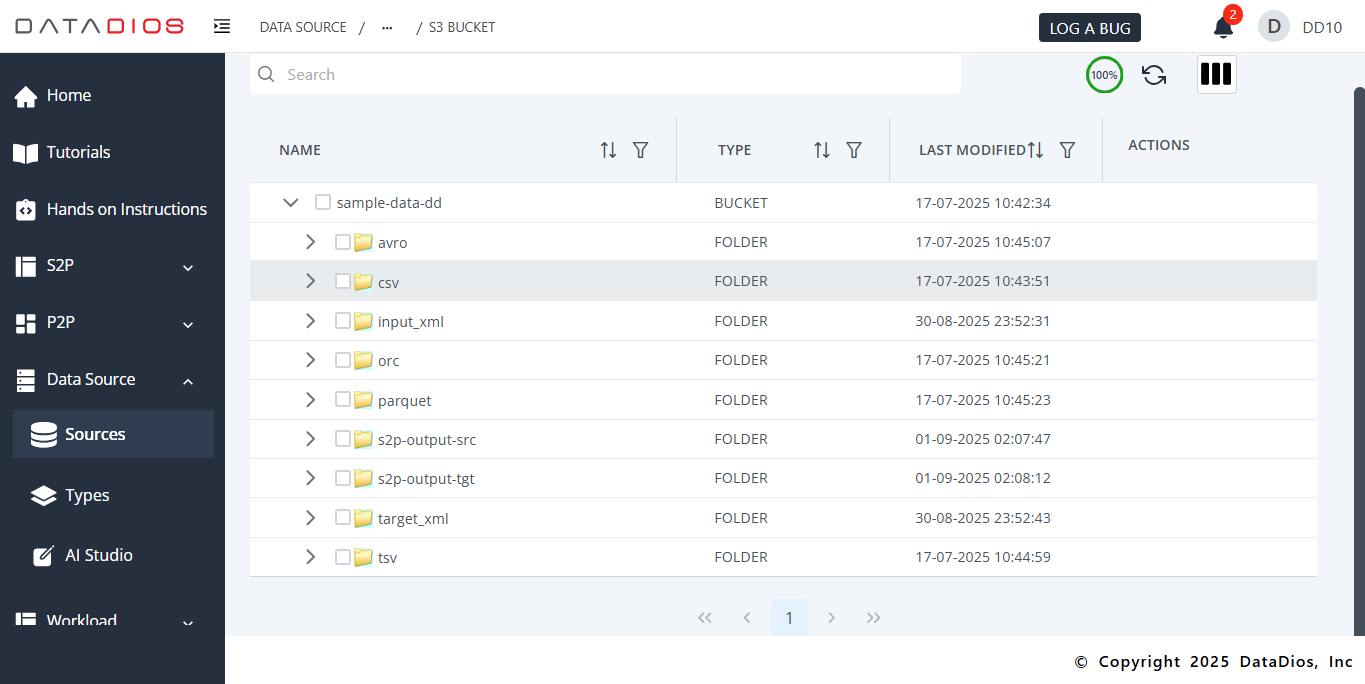
-
To view metadata about any item:
- Click the item name
- Click the three stacked lines icon to open the Object Metadata pop-up
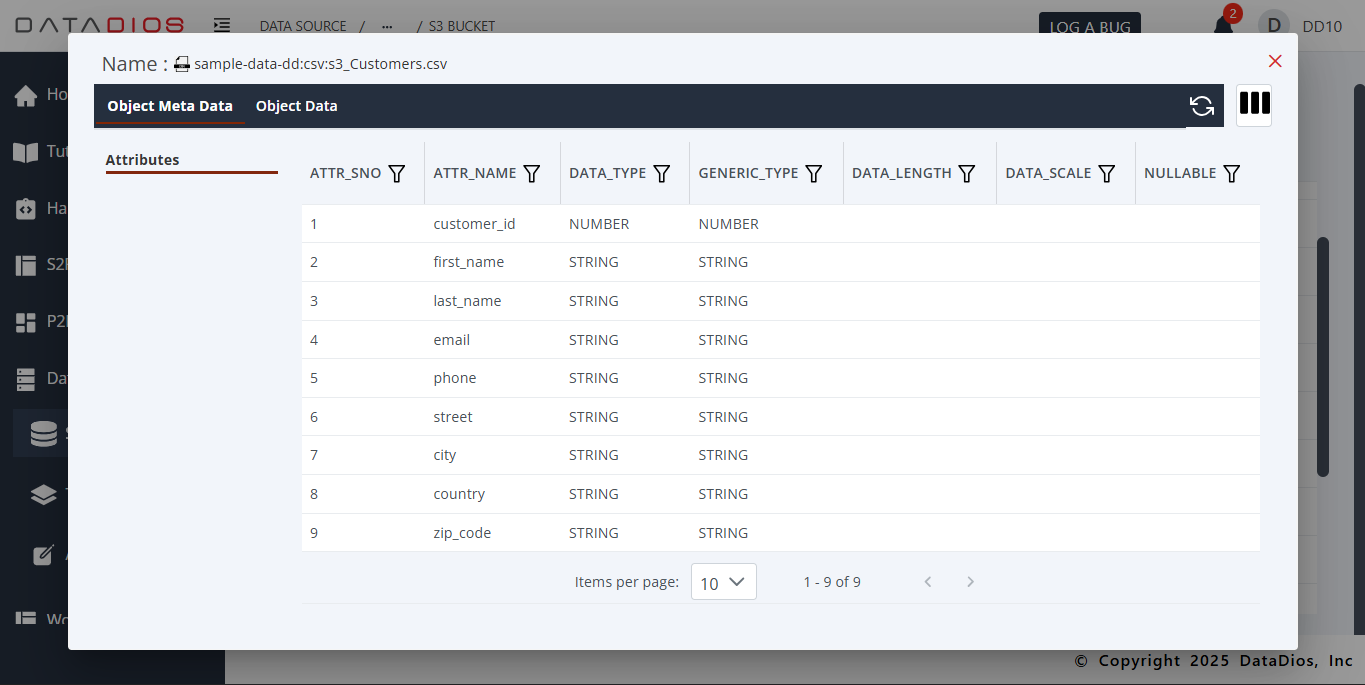
-
You can also explore additional details in the Metadata Explorer:
- Object Data
- View the actual data present in the selected resource (e.g., files, folders, and details)