Gemini Model
This section explains how to connect Google Gemini as a Gen AI Model data source in DataDios. Gemini powers AI Studio text-to-SQL, chat, insights, and metadata discovery.
Unlike Claude, Gemini has a first-class embeddings API, so a Gemini data source can also be selected as your RAG embedding source.
Prerequisites
Get a Gemini API key from Google AI Studio. This is the key for the Gemini Developer API (the "Direct Gemini" provider) — not a Google Cloud service account.
Steps to Create and Test a Gemini Data Source
Step 1: Create a Data Source
- Navigate to Data Explorer from the left navigation menu.
- Click + Add connection in the top-right corner. The Create data source dialog opens.
- Under Identity, enter a Name for the connection and select Gemini Model from the searchable Type dropdown — it is listed under the Gen AI Models group.
Step 2: Fill Connection Details
In the Connection Parameters section, provide:
- Project Name: (Optional) a label to group your models under
- Provider Type: Direct Gemini — the only provider available today
- Model Type: the Gemini chat model to use (required, prefilled with
gemini-2.5-pro). See Choosing a model below - Embedding Model: the embedding model for vector/RAG operations.
models/gemini-embedding-001is the only entry, and the field starts unset — pick it explicitly if you intend to use this source for RAG - Select Secret Source / Password: your Gemini API key. Choose Direct Input to type the key here, or From Secret Store to reference a configured secret store
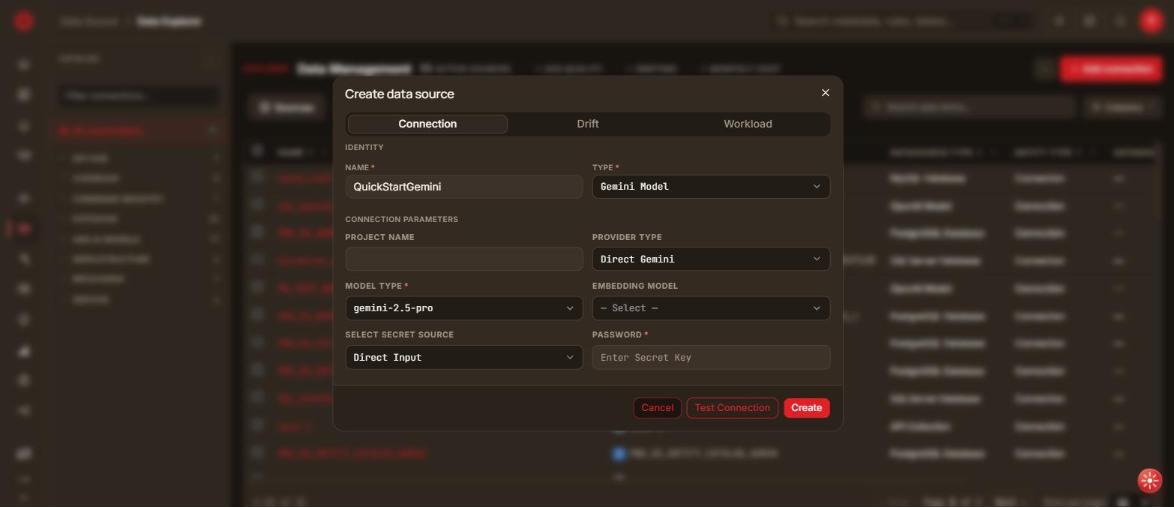
The dialog also carries Drift and Workload tabs, both optional and both available later from Edit:
- Drift — toggle Enable drift tracking to record changes to the source in the drift timeline.
- Workload — toggle Enable workload analysis (and optionally Enable insight extraction), then select the LLM Usage Workload workflow.
Gemini has no Lineage or Profiling tab. Unlike Claude, it takes a single API key — there is no Admin-key field.
Step 3: Test Connection
Click Test Connection. A valid key is confirmed before you save; the key is never echoed back in any response or log.
Step 4: Save Data Source
Click Create. You land back on the Sources list, and the new connection appears under the Gen AI Models category in the left Catalog panel.
To change it later, click the Edit connection (pencil) icon on its row and save with Save instead of Create.
Choosing a model
The model_type dropdown is refreshed automatically from a public model catalog at server start, so newly released Gemini models appear without a DataDios upgrade. Models that shipped with your release are always present regardless.
Only the Gemini chat models are offered. Gemma, robotics, computer-use, image, video and speech models are filtered out — they cannot be driven through the chat interface DataDios uses.
The embedding_model list is not refreshed from the catalog, because the catalog does not publish the vector width DataDios needs to size your RAG store correctly.
See Gen AI Model Catalog for how the list is kept up to date, what network access it needs on-premises, and what changes on upgrade.
Using Gemini with AI Studio and RAG
Select this data source in AI Studio for natural-language queries, SQL generation, chat, and insights (see the AI Studio documentation). Because Gemini provides embeddings, you can also pick it as the embedding source when configuring RAG / hybrid search.
To make Gemini available to every user in your tenant without each user creating their own model source, bind it to AI · reasoning in Manage → Integrations.