Google Drive (Knowledge Base)
This section explains how to connect Google Drive as a Knowledge Base data source in DataDios. It is a read-only connector: you browse the shared folder/file tree, and the platform ingests document text into RAG so it is searchable through Hybrid Search.
Supported document types for retrieval are Google Docs, .txt / .md notes, and .pdf files. Google Sheets, Slides, and images are not extracted.
Prerequisites
Google Drive is authenticated with a service-account JSON key, and the service account only sees files that are explicitly shared with it. Set this up once in the Google Cloud Console:
- Create (or pick) a GCP project.
- Enable the Google Drive API for that project (APIs & Services → Library → Google Drive API → Enable). This is easy to miss and connection will fail without it.
- Create a service account (IAM & Admin → Service Accounts → Create service account).
- Create a JSON key for that service account (Keys → Add key → Create new key → JSON) and download it.
- Share your Drive folders/files with the service-account email (the
client_emailin the JSON, e.g.my-sa@my-project.iam.gserviceaccount.com). Give it Viewer access.
A service account has its own empty Drive. It can only see what you explicitly share with its email address. If browsing shows nothing, you almost certainly haven't shared the folder with the service-account email.
Steps to Create and Test a Google Drive Data Source
Step 1: Create a Data Source
- Navigate to Data Explorer from the left navigation menu.
- Click + Add connection in the top-right corner. The Create data source dialog opens.
- Under Identity, enter a Name for the connection and select Google Drive from the searchable Type dropdown — it is listed under the Knowledge Base group.
Step 2: Fill Connection Details
Google Drive has the shortest form of any connector — the Connection Parameters section holds a single credential pair and nothing else:
- Select Secret Source / Password: paste the entire contents of the downloaded service-account JSON key file. Choose Direct Input to paste it here, or From Secret Store to reference a configured secret store.
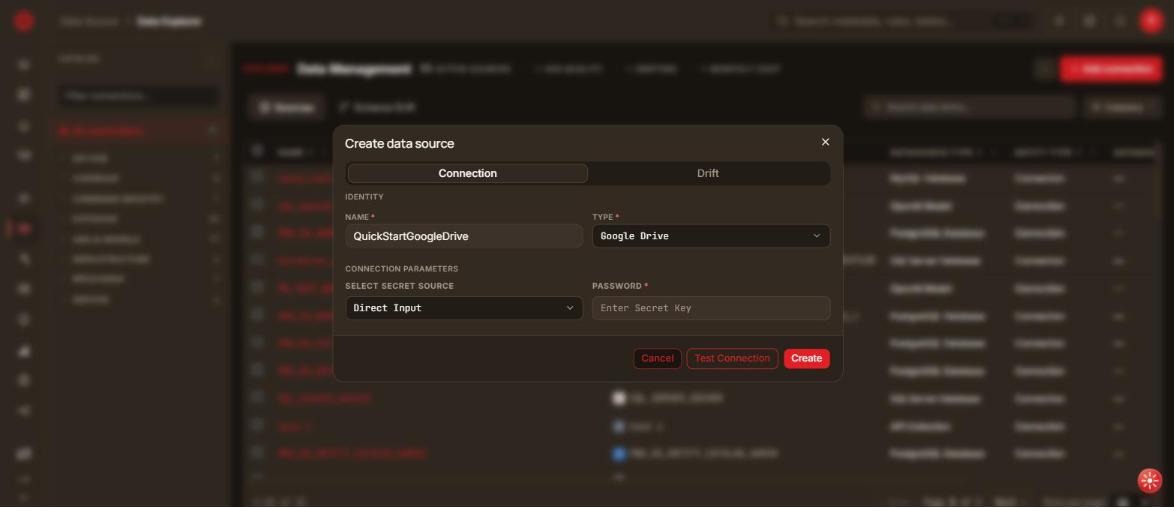
There are still no separate project_id / client_email / private_key boxes — the whole key object goes into the one field, and file upload is not supported. Note that the field is a masked password box, so the pasted JSON is not readable back after you save it; keep your own copy of the key file.
Alongside Connection the dialog carries a Drift tab, where Enable drift tracking records changes to the source in the drift timeline. Google Drive has no Lineage, Workload or Profiling tab.
Step 3: Test Connection
Click Test Connection. A valid key with the Drive API enabled is confirmed before you save; the service-account key is never echoed back in any response or log.
If the test fails, verify the Drive API is enabled and that at least one folder is shared with the service-account email.
Step 4: Save Data Source
Click Create. You land back on the Sources list, with the new connection grouped under Knowledge Base in the left Catalog panel.
To change it later, click the Edit connection (pencil) icon on its row and save with Save instead of Create.
Step 5: Browse and Search
- Expand the data source to browse the shared folders and files at the root, then descend into folders to see sub-folders and files.
- Document content (Docs,
.txt,.md,.pdf) is ingested into RAG and becomes searchable through Hybrid Search.