Confluence (Knowledge Base)
This section explains how to connect Confluence Cloud as a Knowledge Base data source in DataDios. It is a read-only connector: you browse the space/page hierarchy, and the platform ingests page content into RAG so it is searchable through Hybrid Search. Confluence is the original Knowledge Base connector; Google Drive and SharePoint follow the same shape.
Prerequisites
Confluence Cloud is authenticated with your Atlassian account email plus an API token:
- Go to Atlassian API tokens.
- Click Create API token, give it a label, and copy the token.
- Note your Confluence base URL — it includes the
/wikisuffix, e.g.https://your-domain.atlassian.net/wiki.
Steps to Create and Test a Confluence Data Source
Step 1: Create a Data Source
- Navigate to Data Explorer from the left navigation menu.
- Click + Add connection in the top-right corner. The Create data source dialog opens.
- Under Identity, enter a Name for the connection and select Confluence from the searchable Type dropdown — it is listed under the Knowledge Base group.
Step 2: Fill Connection Details
In the Connection Parameters section, provide:
- Base URL: your Confluence Cloud URL including
/wiki, e.g.https://your-domain.atlassian.net/wiki(required) - Email: the Atlassian account email the API token belongs to (required)
- Select Secret Source / Password: your Atlassian API token. Choose Direct Input to type the token here, or From Secret Store to reference a configured secret store
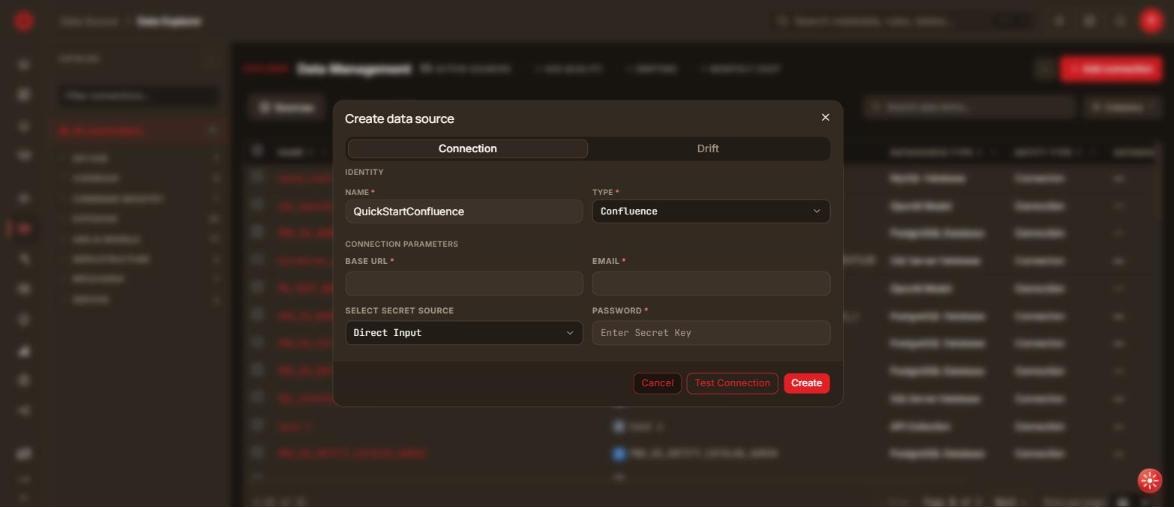
Alongside Connection the dialog carries a Drift tab, where Enable drift tracking records changes to the source in the drift timeline. Confluence has no Lineage, Workload or Profiling tab.
Step 3: Test Connection
Click Test Connection. Valid credentials are confirmed before you save; the API token is never echoed back in any response or log.
Step 4: Save Data Source
Click Create. You land back on the Sources list, with the new connection grouped under Knowledge Base in the left Catalog panel.
To change it later, click the Edit connection (pencil) icon on its row and save with Save instead of Create.
Step 5: Browse and Search
- Expand the data source to browse spaces → pages → child pages.
- Pages nest: a page can itself contain child pages, so you can keep descending past the first level of a space. Spaces can only be expanded, while a page can be both expanded and previewed in place.
- Page content is ingested into RAG and becomes searchable through Hybrid Search.